| DSP Blockset | Search Help Desk |
| Time Frame Scope | See Also |
Library
DSP SinksDescription
The Time Frame Scope block is a comprehensive tool, similar to a digital oscilloscope, for displaying frame-based signals and data. The scope window, axis-property settings, line-property settings, and frame-handling capability are shared with the Frequency Frame Scope and User-Defined Frame Scope blocks. The block assumes that each length-M input frame represents a block of M consecutive samples from a time-series. That is, each data point in the input frame is assumed to correspond to a unique time value, u=u(t). The scope updates the display for each new input frame. At any one time, the number of sequential frames displayed on the scope is specified by the Time display span parameter, S. Setting S equal to 1 plots the current input frame's data across the entire width of the scope. Setting S to a larger number allows you to see a broader section of the signal by fitting more frames of data into the display region. A single frame is the smallest unit that can be displayed, so S cannot be less than 1.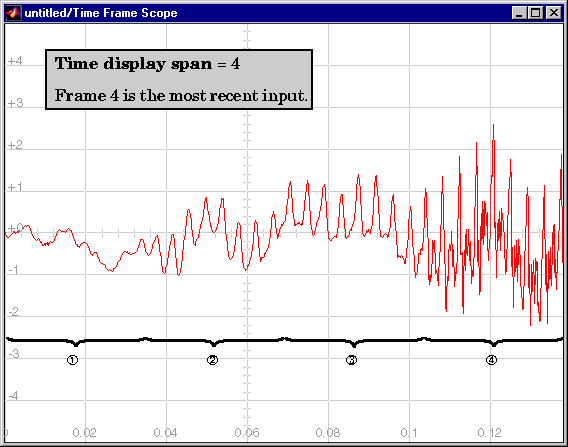 The range of the horizontal (time) axis is [0,S*Tfi], where Tfi is the input frame period, and the spacing between time points is Tfi/(M-1).
Axis Properties
All the frame scope blocks offer a similar collection of axis property settings. These can be exposed in the parameter dialog box by selecting the Axis properties check box. A complementary set of properties can be accessed under the Axes menus in the unzoomed scope view, or by right-clicking on the scope window. See the "Scope Window" section for more on these methods.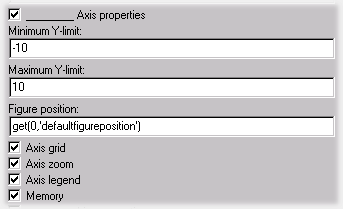
Minimum Y-limit and Maximum Y-limit set the range of the vertical axis. If Autoscale is selected from the right-click pop-up menu, the Minimum Y-limit and Maximum Y-limit values are automatically recalculated to best fit the range of the data on the scope.
The Figure position parameter specifies a 4-element vector of the form[left bottom width height]specifying the position of the scope window on the screen, where (0,0) is the lower-left corner of the display. See the MATLAB
figure command for more information.
The Axis grid and Axis legend check boxes add or remove a grid and legend from the scope window. Click and drag on the legend to reposition it in the scope window; double click on the line label to edit the text.
The Memory parameter, when checked, causes the window to maintain successive displays (infinite persistence). That is, the scope does not erase the display after each frame (or collection of frames) is plotted, but overlays successive input frames in the scope display.
Line Properties
All the frame scope variations also offer a similar collection of line property settings. These can be exposed in the parameter dialog box by selecting the Line properties check box. These properties can also be accessed under the Channels menus in the unzoomed scope view, or by right-clicking on the scope window. See the "Scope Window" section for more on these methods.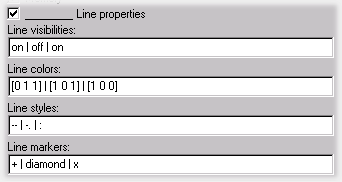
The Line properties setting are typically used to help distinguish between two or more independent channels of data on the scope. See "Frame-Based Operation" for a description of how the block handles multichannel frame-based inputs.
The Line visibilities parameter specifies which channels' data is displayed on the scope, and which is hidden. The syntax specifies the visibilities in list form, where the termon or off as a list entry specifies the visibility of the corresponding channel's data. The list entries are separated by the pipe symbol, |.
For example, a five-channel signal would ordinarily generate five distinct plots on the scope. To disable plotting of the third and fifth lines, enter the following visibility specification:

Note that the first (leftmost) list item corresponds to the first signal channel (leftmost column of the input matrix).
The Line colors parameter specifies the color in which each channel's data is displayed on the scope. The syntax specifies the channel colors in list form, with each list entry specifying a color (in one of MATLAB'sColorSpec formats) for the corresponding channel's data. The list entries are separated by the pipe symbol, |.
For example, a five-channel signal would ordinarily generate all five plots in the color black. To instead plot the lines with the color order below, enter


These settings plot the signal channels in the following colors (8-bit RGB equivalents shown in the center column):
| Color |
RGB Equivalent |
Appearance |
| Black |
(0,0,0) |
|
| Blue |
(0,0,255) |
|
| Red |
(255,0,0) |
|
| Green |
(0,255,0) |
|
| Dark purple |
(192,0,192) |
|
'k', corresponds to the first signal channel (leftmost column of the input matrix). See ColorSpec in the online MATLAB Function Reference for more information about the color syntax.
The Line styles parameter specifies the line style with which each channel's data is displayed on the scope. The syntax specifies the channel line styles in list form, with each list entry specifying a style for the corresponding channel's data. The list entries are separated by the pipe symbol, |.
For example, a five-channel signal would ordinarily generate all five plots with a solid line style. To instead plot each line with a different style, enter

These settings plot the signal channels with the following styles:
| Line Style |
Appearance |
| Solid |
 |
| Dashed |
 |
| Dotted |
 |
| Dash-dot |
 |
| Solid |
 |
'-', corresponds to the first signal channel (leftmost column of the input matrix). See LineStyle property of the line function (in the MATLAB Function Reference) for more information about the style syntax. To specify a marker for the individual sample points, use the Line markers parameter, described below.
The Line markers parameter specifies the marker style with which each channel's samples are represented on the scope. The syntax specifies the channels' marker styles in list form, with each list entry specifying a marker for the corresponding channel's data. The list entries are separated by the pipe symbol, |.
For example, a five-channel signal would ordinarily generate all five plots with no marker symbol (i.e., the individual sample points are not marked on the scope). To instead plot each line with a different marker style, you could enter
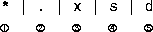
These settings plot the signal channels with the following styles:
| Marker Style |
Appearance |
| Asterisk |
 |
| Point |
 |
| Cross |
 |
| Square |
 |
| Diamond |
 |
'*', corresponds to the first signal channel (leftmost column of the input matrix). See the Marker property of the line function (in the MATLAB Function Reference) for more information about the available markers.
Type the word stem instead of one of the basic Marker shapes to produce a stem plot for the data in a particular channel.
Scope Window
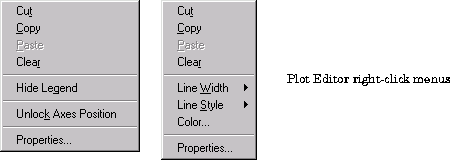
The scope title (in the window title bar) is the same as the block title. The axis scaling is set by parameters in the dialog box. In addition to the standard MATLAB figure window menus (File, Edit, Window, Help), the Time Frame Scope window has an Axes and a Channels menu containing the following items:When Axis zoom is deselected, the axis labels and titles are displayed in a gray border surrounding the scope axes, and window's menus (including Axes and Channels) and toolbar are visible. The Plot Editor tools allow you to annotate and customize the contents of the scope. Select Help Plot Editor from the figure's Help menu for more information about using these tools. Note that when the Plot Editor is active, the right-click pop-up menu contains options for the Plot Editor rather than for the Scope.
Deactivate the Plot Editor to access the Scope right-click pop-up menu.
For information on printing or saving a figure, or on the other options found in the generic figure menus (File, Edit, etc.), see Using MATLAB Graphics.
CH 1, CH 2, etc.). Although you can edit the labels by double-clicking on them, the new edits are lost when the simulation runs again, and the labels revert to the defaults. The Legend option can also be set in the Axis properties panel of the parameter dialog box.
See "Frame-Based Operation" for a description of how the block handles multichannel frame-based inputs.
Frame-Based Operation
Inputs to the frame scope blocks are loosely considered to be frames, even though they need not contain consecutive time samples. For example, valid inputs include vectors of power spectral density data and histogram data. Indeed, the input can even be a sequence of sample vectors to plot against a common axis. The blocks are referred to as frame-based because they process matrix inputs in the usual frame-based fashion. The block assumes that an M-by-N matrix input contains a collection of N frames, where each frame contains M samples (time-domain, frequency-domain, etc.) from an independent signal. The Number of channels parameter specifies the number of independent channels (columns, N) in the matrix, and the block plots each channel separately. Different colors, markers, and styles can be specified for the different channels. See above. The illustration below shows a 6-by-4 frame matrix input.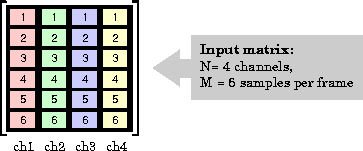
Dialog Box
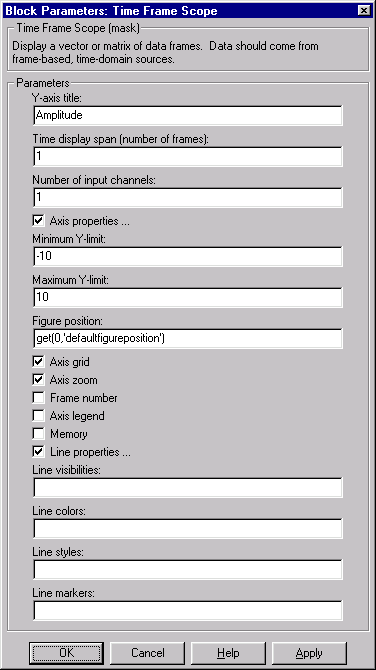

[left bottom width height] specifying the position of the scope window. (0,0) is the lower-left corner of the display.


on or off. Channels are separated by a pipe ( | ) symbol.
ColorSpec formats. Channels are separated by a pipe ( | ) symbol.

See Also
FFT Frame Scope