Display a matrix as a color image.
Library
DSP Sinks
Description
The Matrix Viewer block displays an M-by-N matrix input by mapping the matrix element values to a specified range of colors. The number of input columns must be specified in the Number of columns parameter of the Image properties panel (select the Image properties check box to expose the panel). The display is updated as each new input is received.
Image Properties
Click on the Image properties check box to expose the image property parameters, which control the colormap and display.
The mapping of matrix element values to colors is specified by the Colormap matrix, Minimum input, and Maximum input parameters. For a colormap with L colors, the colormap matrix has dimension L-by-3, with one row for each color and one column for each element of the RGB triple that defines the color. Examples of RGB triples are:
[ 1   0   0 ]   (red)
[ 0   0   1 ]   (blue)
[0.8 0.8 0.8]   (light gray)
See ColorSpec in the online MATLAB Function Reference for complete information about defining RGB triples.
MATLAB provides a number of functions for generating predefined colormaps. Examples are hot, cool, bone, and autumn. Each of these functions accepts the colormap size as an argument, and can be used in the Colormap matrix parameter. For example, if you specify gray(128) for the Colormap matrix parameter, the matrix is displayed in 128 shades of gray. The color in the first row of the colormap matrix is used to represent the value specified by the Minimum input parameter, and the color in the last row is used to represent the value specified by the Maximum input parameter. Values between the minimum and maximum are quantized and mapped to the intermediate rows of the colormap matrix.
The documentation for MATLAB's colormap function provides complete information about specifying colormap matrices, and includes a complete list of the available colormap functions.
Axis Properties
Click on the Axis properties check box to expose the axis property parameters, which control labeling and positioning.
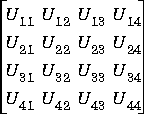
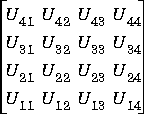
The Axis origin parameter determines where the first element of the input matrix, U(1,1), is displayed. When Upper left corner is specified, the matrix is displayed in matrix orientation, with U(1,1) in the upper-left corner.
When Lower left corner is specified, the matrix is flipped vertically to image orientation, with U(1,1) in the lower-left corner.
Axis zoom, when selected, causes the image display to completely fill the figure window. Menus and axis titles are not displayed. This option can also be selected from the right-click pop-up menu in the figure window.
When Axis zoom is deselected, the axis labels and titles are displayed in a gray border surrounding the image axes, and the window's menus (including Axes) and toolbar are visible. The Plot Editor tools allow you to annotate and customize the image display. Select Help Plot Editor from the figure's Help menu for more information about using these tools. For information on printing or saving the image, or on the other options found in the generic figure menus (File, Edit, Window, Help), see Using MATLAB Graphics.
Figure Window
The image title (in the figure title bar) is the same as the block title. The axis tick marks reflect the size of the input matrix; the x-axis is numbered from 0 to N (number of columns), and the y-axis is numbered from 0 to M (number of rows).
In addition to the standard MATLAB figure window menus (File, Edit, Window, Help), the Matrix Viewer window has an Axes menu containing the following items:
- Refresh erases all data on the scope display, except for the most recent image.
- Autoscale recomputes the Minimum input and Maximum input parameter values to best fit the range of values observed in a series of 10 consecutive inputs. The numerical limits selected by the autoscale feature are shown in the Minimum input and Maximum input parameters, where you can make further adjustments to them manually.
- Axis zoom, when selected, causes the image to completely fill the containing figure window. Menus and axis titles are not displayed. When Axis zoom is deselected, the axis labels and titles are displayed in a gray border surrounding the scope axes, and the window's menus (including Axes) and toolbar are visible. This option can also be set in the Axis properties panel of the parameter dialog box.
- Colorbar, when selected, displays a bar with the specified colormap to the right of the image axes.
- Save Position automatically updates the Figure position parameter in the Axis properties field to reflect the figure window's current position and size. To make the scope window open at a particular location on the screen when the simulation runs, simply drag the window to the desired location, resize it as needed, and select Save Position. Note that the parameter dialog box must be closed when you select Save Position in order for the Figure position parameter to be updated.
Many of these options can also be accessed by right-clicking with the mouse anywhere on the displayed image. The right-click menu is very helpful when the scope is in zoomed mode and the Axes menu is not visible.
Dialog Box
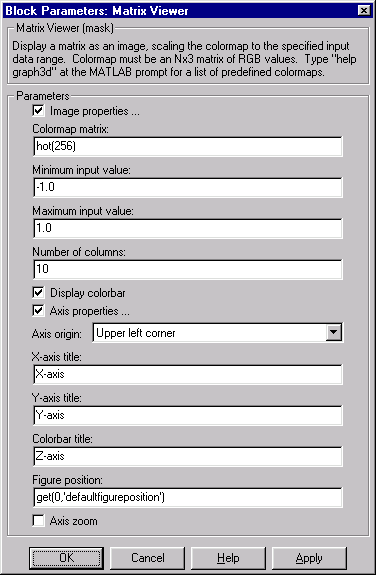
- Image properties

- Select to expose the image property parameters.
- Colormap matrix

- A 3-column matrix defining the colormap as a set of RGB triples, or a call to a colormap-generating function such as
hot or spring. See the ColorSpec property for complete information about defining RGB triples, and the colormap function for a list of colormap-generating functions.
- Minimum input value

- The input value to be mapped to the color defined in the first row of the colormap matrix. Select Autoscale from the right-click pop-up menu to set this parameter to the minimum value observed in a series of 10 consecutive matrix inputs.
- Maximum input value

- The input value to be mapped to the color defined in the last row of the colormap matrix. Select Autoscale from the right-click pop-up menu to set this parameter to the maximum value observed in a series of 10 consecutive matrix inputs.
- Number of columns
- The number of columns in the matrix input.
- Display colorbar

- Select to display a bar with the selected colormap to the right of the image axes.
- Axis properties

- Select to expose the axis property parameters.
- Axis origin

- The position within the axes where the first element of the input matrix,
U(1,1), is plotted; bottom left or top left.
- X-axis title

- The text to be displayed below the x-axis.
- Y-axis title

- The text to be displayed to the left of the y-axis.
- Colorbar title

- The text to be displayed to the right of the color bar, if Display colorbar is currently selected.
- Figure position

- A 4-element vector of the form
[left bottom width height] specifying the position of the figure window. (0,0) is the lower-left corner of the display.
- Axis zoom

- Resizes the image to fill the figure window.
Examples
See the demo dspstfft.mdl for an example of using the Matrix Viewer block to create a moving spectrogram (time-frequency plot) of a speech signal by updating just one column of the input matrix at each sample time.
See Also
Buffered FFT Frame Scope
Frequency Frame Scope
Time Frame Scope
User-Defined Frame Scope
ColorSpec (MATLAB)
colormap (MATLAB)
[ Previous | Help Desk | Next ]