Configuring a Target
Configuring a target entails some or all of the following steps:
- 1
- Add the target, if necessary, to the state machine's target list.
- See "Adding a Target to a State Machine's Target List" for
instructions on how to add targets to a state machine's target list.
- 2
- Specify code generation options.
- See "Specifying Code Generation Options" for more
information.
- 3
- Specify custom code options.
- See "Specifying Custom Code Options" for more information.
- 4
- Check "Apply to all Libraries" on the Target Builder dialog box if you want
the selected options to apply to the code generated for charts imported from
chart libraries.
Configuring an RTW target may require additional steps. See the Real-Time Workshop User's Guide for more information.
Adding a Target to a State Machine's Target List
Building a stand-alone target requires that you first add the target to the list of potential targets maintained by Stateflow for a particular model.
To add a target:
- 1
- Select Explore from the Stateflow editor's Tools menu.
- The Stateflow Explorer appears.
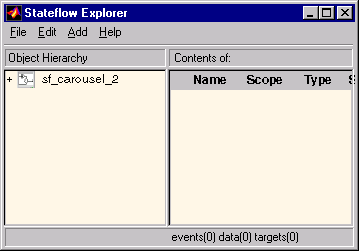
- The Explorer object hierarchy shows the state machines currently loaded in
memory.
- 2
- Select the state machine to which you want to add the stand-alone target.
- The Explorer displays the selected state machine's data, events, and targets
in the contents pane.
- 3
- Select Target from the Explorer's Add menu to add a target with the default
name "untitled" to the selected machine.
- 4
- Rename the target.
- You can rename the target to any name that differs from the names of other
targets targeted by the state machine. If you are adding an RTW target, you
must name the target
rtw. (A state machine can have only one RTW target.)
Renaming the Target
To rename the target:
- 1
- Select the target in the Explorer's content pane and press the right mouse
button.
- A pop-up menu appears.
- 2
- Select Rename from the pop-up menu.
- The Explorer redisplays the selected target's name in an edit box.
- 3
- Change the target's name in the edit box.
- 4
- Click outside the edit box to close it.
[ Previous | Help Desk | Next ]