| Using Simulink | Search Help Desk |
The Workspace I/O Page
You can direct simulation output to workspace variables and get input and initial states from the workspace. On the Simulation Parameters dialog box, select the Workspace I/O tab. This page appears: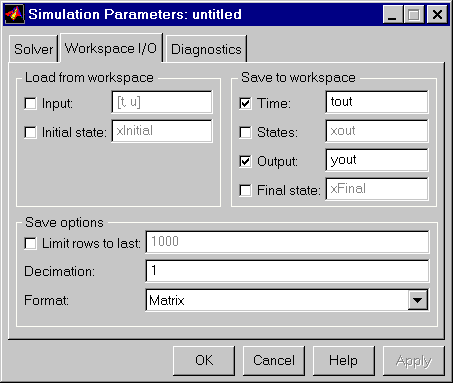
Loading Input from the Base Workspace
Simulink can apply input from a model's base workspace to the model's top-level inports during a simulation run. To specify this option, check the Input box in the Load from workspace area of the Workspace I/O page. Then, enter an external input specification (see below) in the adjacent edit box and select Apply. The external input can take any of the following forms. External Input Matrix. The first column of an external input matrix must be a vector of times in ascending order. The remaining columns specify input values. In particular, each column represents the input for a different Inport block signal (in sequential order) and each row is the input value for the corresponding time point. Simulink linearly interpolates or extrapolates input values as necessary, if the Interpolate data option is selected for the corresponding inport (see "Interpolate data"). The total number of columns of the input matrix must equaln + 1, where n is the total number of signals entering the model's inports. If you define t and u in the base workspace, you do not need to enter an external input specification for the model. This is because the default external input specification for a model is [t,u].
For example, suppose that a model has two inports, one of which accepts two signals and the other, one signal. Also, suppose that the base workspace defines u and t as follows:
t = (0:0.1:1)';
u = [sin(t), cos(t), 4*cos(t)];
Then, to specify the external input for this model, simply check the model's external input box. Structure with time. Simulink can read data from the workspace in the form of a structure whose name is specified in the Input text field. The input structure must have two top-level fields:
time and signals. The time field contains a column vector of the simulation times. The signals field contains an array of substructures, each of which corresponds to a model input port. Each substructure has the field: values. The values field contains a column vector of inputs for the corresponding input port.
For example, consider the following model, which has two inputs.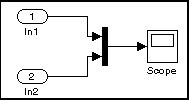
a, as follows:
a.time = (0:0.1:1)';
a.signals(1).values = sin(a.time);
a.signals(2).values = cos(a.time);
Then, to specify a as the external input for this model, check the Input box and enter
a in the adjacent text field.
Note
time field is empty. For example, in the preceding example, you could set the time field as follows.
a.time = []
signals field. To specify this option, enter the names of the structures in the Input text field as a comma-separated list in1, in2, ..., inN, where in1 is the data for your model's first port, in2 for the second inport, and so on.
External Input Time Expression..
The time expression can be any MATLAB expression that evaluates to a row vector equal in length to the number of signals entering the model's inports. For example, suppose that a model has one vector inport that accepts two signals. Furthermore, suppose that timefcn is a user-defined function that returns a row vector two elements long. The following are valid input time expressions for such a model:
Simulink evaluates the expression at each step of the simulation, applying the resulting values to the model's inports. Note that Simulink defines the variable'[3*sin(t), cos(2*t)]''4*timefcn(w*t)+7'
t when it runs the simulation. Also, you can omit the time variable in expressions for functions of one variable. For example, Simulink interprets the expression sin as sin(t).
Saving Output to the Workspace
You can specify return variables by selecting the Time, States, and/or Output check boxes in the Save to workspace area of this dialog box page. Specifying return variables causes Simulink to write values for the time, state, and output trajectories (as many as are selected) into the workspace. To assign values to different variables, specify those variable names in the field to the right of the check boxes. To write output to more than one variable, specify the variable names in a comma-separated list. Simulink saves the simulation times in a vector have the name specified in the Save to Workspace area. NoteTo Workspace).
The Save options area enables you to specify the format and restrict the amount of output saved.
Format options for model states and outputs are:
Matrix.
Simulink saves the model states in a matrix that has the name specified in the Save to Workspace area (for example, xout). Each column of the state matrix corresponds to a model state, each row to the states at a specific time. The model output matrix has the name specified in the Save to Workspace area (for example, yout). Each column corresponds to a model outport, each row to the outputs at a specific time.
Structure with time.
Simulink saves the model's outputs in a structure having the name specified in the Save to Workspace area (for example, yout). The structure has two top-level fields: time and signals. The time field contains a vector of the simulation times. The signals field contains an array of substructures, each of which corresponds to a model outport. Each substructure has three fields: values, label, blockName. The values field contains a vector of outputs for the corresponding outport. The label field specifies the label of the signal connected to the outport. The blockName field specifies the name of the outport. Simulink saves the model's states in a structure have the same organization as the model output structure.
Structure.
This format is the same as the preceding except that Simulink does not store simulation times in the time field of the saved structure.
Per-Port Structures.
This format consists of a separate structure-with-time or structure-without-time for each output port. Each output data structure has only one signals field. To specify this option, enter the names of the structures in the Output text field as a comma-separated list out1, out2, ..., outN, where out1 is the data for your model's first port, out2 for the second inport, and so on.
To set a limit on the number of rows of data saved, select the check box labeled Limit rows to last and specify the number of rows to save. To apply a decimation factor, enter a value in the field to the right of the Decimation label. For example, a value of 2 saves every other point generated.
Loading and Saving States
Initial conditions, which are applied to the system at the start of the simulation, are generally set in the blocks. You can override initial conditions set in the blocks by specifying them in the States area of this page. You can also save the final states for a simulation and apply them to another simulation. This feature might be useful when you want to save a steady-state solution and restart the simulation at that known state. The states are saved in the format that you select in the Save options area of the Workspace I/O page. If you select Structure or Structure with Time, the saved format is as follows: Structure with time. Simulink saves the model's states in a structure having the name specified in the Final State field of the Save to Workspace area (for example,xFinal). The structure has two top-level fields: time and signals. The time field contains a vector of the simulation times. The signals field contains an array of substructures, each of which corresponds to a block that has states. Each substructure has three fields: values, label, blockName. The values field contains a vector of states for the corresponding block. The label field can be either CState (for continuous state) or DState_n where n can be 1, 2, 3 ... to the maximum number of sets of discrete states for the corresponding block. The blockName field specifies the name of the block represented by this structure element.
Structure.
This format is the same as the preceding except that Simulink does not store simulation times in the time field of the saved structure
You load states by selecting the Initial State check box and specifying the name of a variable that contains the initial state values. This variable can be a matrix or a structure of the same form as is used to save final states. This allows Simulink to set the initial states for the current session to the final states saved in previous session, using the Structure or Structure with time format.
If the check box is not selected or the state vector is empty ([]), Simulink uses the initial conditions defined in the blocks.
You save the final states (the values of the states at the termination of the simulation) by selecting the Final State check box and entering a variable in the adjacent edit field.
When the Model Has Multiple States.
If you want to specify the initial conditions for a model that has multiple states, you need to determine the order of the states. You can determine a model's initial conditions and the ordering of its states with this command
[sizes, x0, xstord] = sys([], [], [], 0)
where sys is the model name. The command returns:
sizes, a vector that indicates certain model characteristics. Only the first two elements apply to initial conditions: sizes(1) is the number of continuous states, and sizes(2) is the number of discrete states. The sizes vector is described in more detail in the companion volume to this guide, Writing S-Functions.
x0, the block initial conditions.
xstord, a string matrix that contains the full path name of all blocks in the model that have states. The order of the blocks in the xstord and x0 vectors are the same.
vdp model (the example shows only the values for sizes(1), the number of continuous states, and sizes(2), the number of discrete states):
[sizes, x0, xstord] = vdp([], [], [], 0)

sizes =
   2
   0

x0 =
   2
   0

xstord =
   'vdp/Integrator1'
   'vdp/Integrator2'