| Using Simulink | Search Help Desk |
| To Workspace |
Library
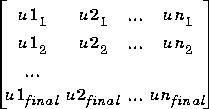
SinksDescription
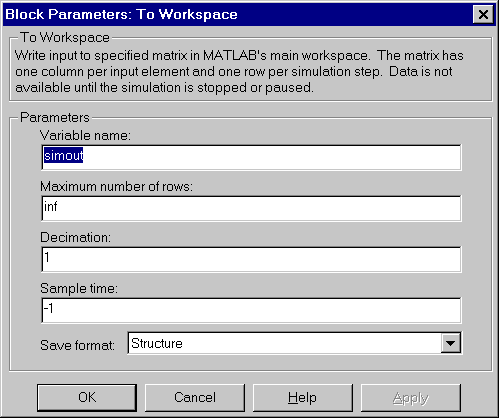
inf.
nth sample, where n is the decimation factor. The default decimation, 1, writes data at every time step.
This format consists of a structure with three fields: time, signals, and blockName. The time field is empty. The blockName field contains the name of the To Workspace block. The signals field contains a structure with two fields: values and label. The values field contains the matrix of signal values.
Structure with TimeThis format is the same as Structure except that the time field contains a vector of simulation time steps.
Using Saved Data with a From File Block
If the data written using a To Workspace block is to be saved and read later by a From File block, the time must be added to the data and the matrix must be transposed. For more information, see From File.
If the data written using a To Workspace block is intended to be "played back" in another simulation using a From Workspace block, the data must contain the simulation time values. The way you include times depends on the save format.
If the save format is a structure, you can include the simulation time by choosingStructure with Time as the value of Save format. The block stores the simulation times as a vector in the time member of the output structure.
If the save format is a matrix, you must add a column of simulation times to the matrix. You can add a column with time values in two ways:

t) to the matrix using a command like this:
matrix = [t; matrix];
Examples
In a simulation where the start time is 0, the Maximum number of rows is 100, the Decimation is 1, and the Sample time is 0.5. The To Workspace block collects a maximum of 100 points, at time values of 0, 0.5, 1.0, 1.5, & seconds. Specifying a Decimation of 1 directs the block to write data at each step. In a similar example, the Maximum number of rows is 100 and the Sample time is 0.5, but the Decimation is 5. In this example, the block collects up to 100 points, at time values of 0, 2.5, 5.0, 7.5, & seconds. Specifying a Decimation of 5 directs the block to write data at every fifth sample. The sample time ensures that data is written at these points. In another example, all parameters are as defined in the first example except that the Maximum number of rows is 3. In this case, only the last three rows collected are written to the workspace. If the simulation stop time is 100, data corresponds to times 99.0, 99.5, and 100.0 seconds (three points).Data Type Support
A To Workspace block can save input of any real or complex data type to the MATLAB workspace.Parameters and Dialog Box
1.Characteristics
| Sample Time |
Inherited |
| Vectorized |
Yes |