Component
Scope Snapshot
Category
Simulink
Description
The Scope Snapshot component inserts an image of a Simulink scope and XY graphs. If the model has not been simulated, scopes will be empty. See the Model Simulation component attribute page.
Attributes
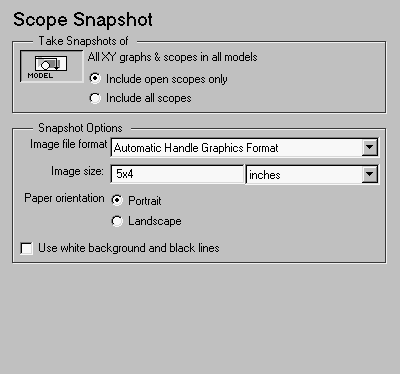
This is the Scope Snapshot attribute page.
 Note:
Note:
To view a component attribute page in the Setup File Editor, select the component in the setup file outline on the left and click on the Options tab. If the component is not in the setup file outline, you must add it to the outline first. See Chapter 4 for a discussion on how to add a component to the outline.
Take Snapshots of
This frame describes what the Scope Snapshot component is operating on:
- Include open scopes only
- Select this option to take a snapshot of scopes that are currently open.
- Include all scopes
- Select this option to take a snapshot of all scopes in the model. This option forces closed scopes to open when the report is generating.
Snapshot Options
- Image file format
- Choose the image file format (e.g., JPEG, TIFF, etc.,) from this drop box. To automatically choose the format best suited for the output format that you chose in the Report component, select
Automatic, which is the default option. Otherwise, make sure that you choose an image format that your output viewer can read.
Image Size
Specify the image size in the form wxh (width times height) in the Image Size field and the units in the corresponding drop box. The image size equal these dimensions.
If you change the units, the number in the image size field will automatically change to match the units.
- Paper orientation
- You can choose Landscape or Portrait as your paper orientation.
- Use white background and black lines
- Select this option to display the scope snapshot with a white background and black axes and traces. This is the best option if you are printing your output.
Insert anything into report?
Yes. Image.
Filename
cslscopesnap
[ Previous | Help Desk | Next ]