| Using Stateflow | Search Help Desk |
Stateflow Finder User Interface
Finder Dialog Box
The Finder operates on a machine. This is the Finder dialog box.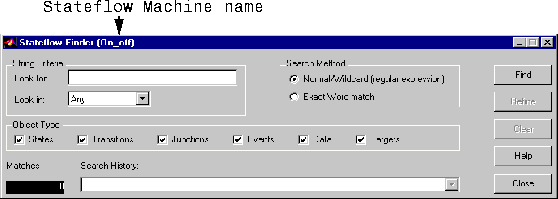
String Criteria
You specify the string by entering the text to search for in the Look for: text box. The search is case sensitive. All text fields are included in the search by default. Alternatively, you can search in specific text fields by using the drop down Look in: list box to choose one of these options:Search the state and transition labels, object names, and descriptions of the specified object types for the string specified in the Look for: field.
Search the state and transition labels of the specified object types for the string specified in the Look for: field.
Search the name fields of the specified object types for the string specified in the Look for: field.
Search the description fields of the specified object types for the string specified in the Look for: field.
Search the document link fields of the specified object types for the string specified in the Look for: field.
Search custom code for the string specified in the Look for: field.
Search Method
By default the Search Method is Normal/Wildcard (regular expression). Alternatively, you can click on the Exact Word match option if you are searching for a particular sequence of one or more words. A regular expression is a string composed of letters, numbers, and special symbols that defines one or more strings. Some characters have special meaning when used in a regular expression while other characters are interpreted as themselves. Any other character appearing in a regular expression is ordinary, unless a \ precedes it. These are the special characters supported by Stateflow.| Character |
Description |
| ^ |
Start of string |
| $ |
End of string |
| . |
Any character |
| \ |
Quote the next character |
| * |
Match zero or more |
| + |
Match one or more |
| [ ] |
Set of characters |
Object Type
Specify the object type(s) to search by toggling the radio boxes. A check mark indicates that the object is included in the search criteria. By default, all object types are included in the search criteria. Object Types include:Find Button
Click on the Find button to initiate the search operation. The data dictionary is queried and the results are listed in the display area.Matches
The Matches field displays the number of objects that match the specified search criteria.Refine Button
After the results of a search are displayed, enter additional search criteria and click on the Refine button to narrow the previously entered search criteria. An ampersand(&) is prepended to the search criteria in the Search History: field to indicate a logical AND with any previously specified search criteria.Search History
The Search History text box displays the current search criteria. Click on the pull-down list to display search refinements. An ampersand is prepended to the search criteria to indicate a logical AND with any previously specified search criteria. You can undo a previously specified search refinement by selecting a previous entry in the search history. By changing the Search History selection you force the Finder to use the specified criteria, as the current, most refined, search output.Clear Button
Click the Clear button to clear any previously specified search criteria. Results are removed and the search criteria is reset to the default settings.Close Button
Click the Close button to close the Finder.Help Button
Click the Help button to display the Stateflow online help in an HTML browser window.Finder Display Area
The Finder display area looks like this.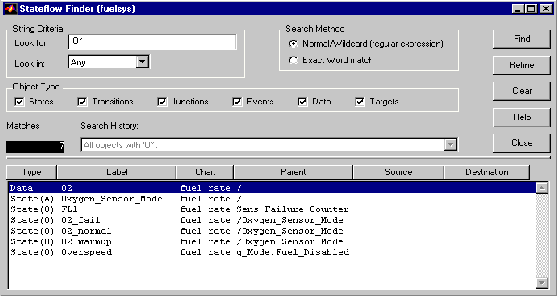
Representing Hierarchy
The Finder displays Parent, Source, and Destination fields to represent the hierarchy. The Stateflow diagram is the root of the hierarchy and is represented by the / character. Each level in the hierarchy is delimited by a . character. The Source and Destination fields use the combination of the ~ and the . characters to denote that the state listed is relative to the Parent hierarchy. Using this Stateflow diagram as an example,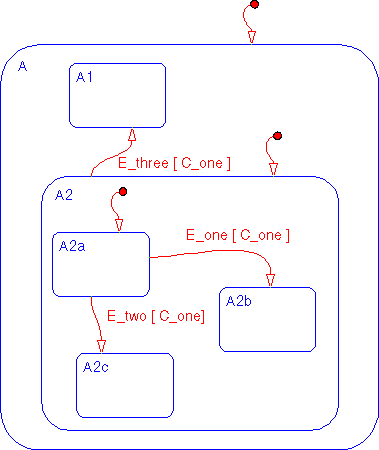
A2a to A2b?
The transition is within state A2. State A2's parent is state A and state A's parent is the Stateflow diagram itself. /A.A2 is the notation for state A2a's parent. State A2a is the transition source and state A2b is the destination. These states are at the same level in the hierarchy. ~.A2a is the relative hierarchy notation for the source of the transition. The full path is /A.A2.A2a. The relative hierarchy notation for the destination of the transition is ~.A2b. The full path is /A.A2.A2b.