| Using Stateflow | Search Help Desk |
Stateflow Explorer User Interface
Explorer Main Window
This is the Explorer main window showing the object hierarchy of an example chart (explore_ex). 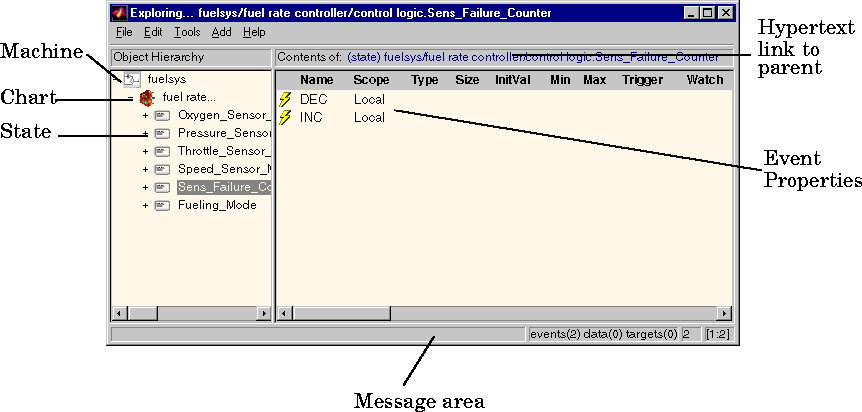
Object Hierarchy
The Object Hierarchy (machines, charts, and states) is displayed in the left-hand pane. A `+' character indicates that the hierarchy can be expanded by double-clicking on that entry (or by clicking on the `+' character. A `-' character indicates there is nothing to expand. Clicking on an entry in the Object Hierarchy selects that entry.Contents Pane
Data, and target objects parented by the currently selected object in the Object Hierarchy are displayed in the Contents pane. Each type of object has an icon. The entry for a data object displays selected properties of the object. These are the possible parent and object combinations.| Machine |
Chart |
State |
|
| Event |
yes |
yes |
yes |
| Data |
yes |
yes |
yes |
| Target |
yes |
no |
no |
sfun simulation target is automatically defined for every machine. If you have a Real-Time Workshop license, a Real-Time Workshop target is also automatically added:
File Menu
Select Close (Ctrl+W) from the File menu to close the Explorer window.Edit Menu
Select Cut (Ctrl+X) from the Edit menu to delete the selected data, event, or target object in the Contents of: pane.Add Menu
The Add menu provides these options.Help Menu
The Help menu provides these options.Moving Objects/Changing Parent
To create desired behavior you may need to change the parent of an event, data, or target object. Objects in the Contents of: pane can be moved in the hierarchy to change an object's parent. Click and drag an object from the Contents of: pane to a new location in the Object Hierarchy pane to change its parent. If the object is the current parent, an X with a circle around it is displayed (indicating this is an invalid operation). If you move an object to a level in the hierarchy that does not support that object's current Scope property, the Scope is changed to Local.Moving Objects/Changing Index and Port Order
To ensure proper ordering of event and/or data Input from or Output to Simulink you may need to move some of these objects in the Explorer. Click and drag a data object with Input from or Output to Simulink Scope to a new position in the Contents of: pane Data list to change its port number. Click and drag an event Input from or Output to Simulink Scope to a new position in the Contents of: pane Event list to change its index number.Deleting Objects
Select the object in the Contents of: pane and press the Delete key or select Cut (Ctrl+X) from the Edit menu to delete an object.Editing Objects
To edit a state or chart displayed in the Explorer's Object Hierarchy pane, select the object, display its context menu by clicking the right mouse button, and select Edit from the context menu. Stateflow displays the selected object in the Stateflow editor.