Chapter 2
Creating Charts
Creating a Chart
To create a Stateflow chart:
- 1
- Create a new model with an empty chart block or copy an empty chart from
the Stateflow block library into your model.
- To create a new model with an empty chart, enter
sfnew or stateflow at the
MATLAB command prompt. The first command creates a new model.
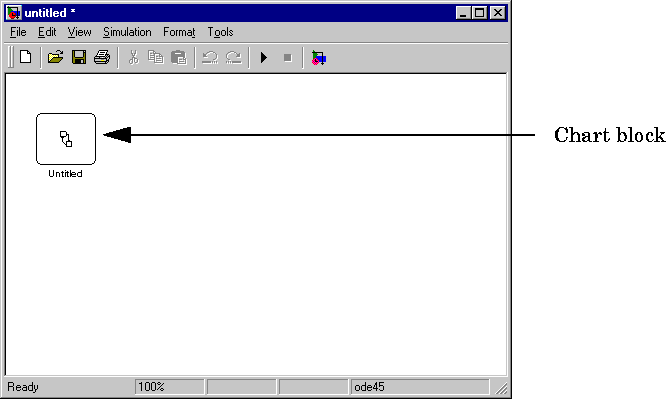
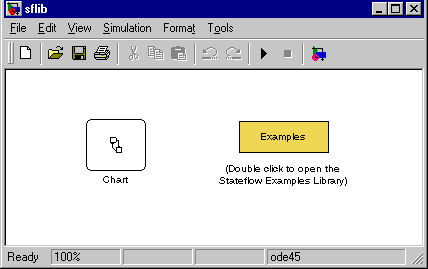
- The second command also displays the Stateflow block library in case you
want to create multiple charts in your model.
- For information on creating your own chart libraries, see "Creating Chart
Libraries" on page 2-32.
- 2
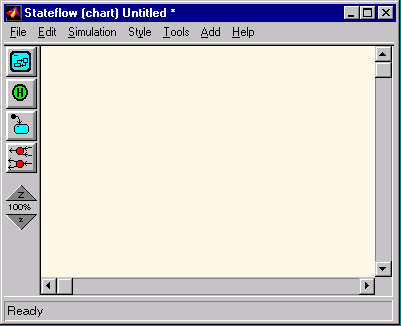
- Open the chart by double-clicking on the chart block.
- Stateflow opens the empty chart in a Stateflow editor window.
- 3
- Use the Stateflow editor to draw and connect states representing the desired
state machine or a component of the desired state machine.
- See "Using the Stateflow Editor" for more information.
- 4
- Specify a wakeup method for the chart.
- See "Specifying Chart Properties".
- 5
- Interface the chart to other charts and blocks in your Stateflow model, using
events and data.
- See Chapter 3, "Defining Events and Data" and Chapter 4, "Defining
Stateflow Interfaces" for more information.
- 6
- Rename and save the model chart by selecting Save Model As from the
Stateflow editor menu or Save As from the Simulink menu.
[ Previous | Help Desk | Next ]