Creating a Subsystem by Grouping Existing Blocks
If your model already contains the blocks you want to convert to a subsystem, you can create the subsystem by grouping those blocks:
- 1
- Enclose the blocks and connecting lines that you want to include in the
subsystem within a bounding box. You cannot specify the blocks to be
grouped by selecting them individually or by using the Select All command.
For more information, see "Selecting Multiple Objects Using a Bounding
Box" on page 3-7.
- For example, this figure shows a model that represents a counter. The Sum
and Unit Delay blocks are selected within a bounding box.
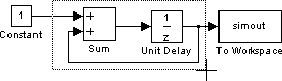
- When you release the mouse button, the two blocks and all the connecting
lines are selected.
- 2
- Choose Create Subsystem from the Edit menu. Simulink replaces the
selected blocks with a Subsystem block. This figure shows the model after
choosing the Create Subsystem command (and resizing the Subsystem
block so the port labels are readable).
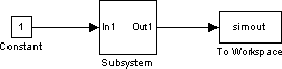
If you open the Subsystem block, Simulink displays the underlying system, as shown below. Notice that Simulink adds Inport and Outport blocks to represent input from and output to blocks outside the subsystem.
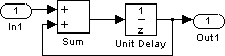
As with all blocks, you can change the name of the Subsystem block. Also, you can customize the icon and dialog box for the block using the masking feature, described in Chapter 6.
[ Previous | Help Desk | Next ]