| SB2SL | Search Help Desk |
Using SB2SL
Before translating a SystemBuild model, you must save it in ASCII format (usually with a file extension.xmd). SB2SL does not support translation of binary SystemBuild files.
To start SB2SL, type
sb2slat the MATLAB command prompt. This opens the main SB2SL graphical user interface (GUI) and an associated message window.
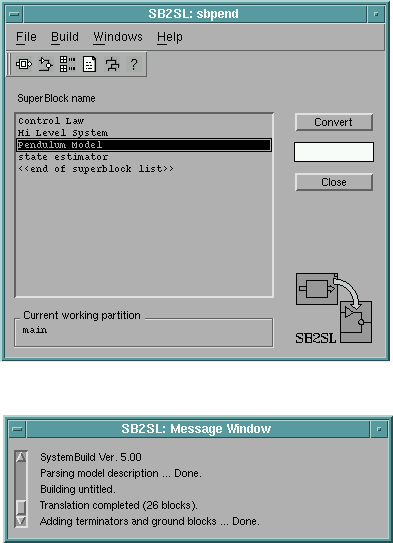
Figure 1: The Main SB2SL GUI and the Message Window
Loading a SystemBuild Model into SB2SL
Choose Open from the File menu in the main window to load a SystemBuild model. This opens a file browser from which you can select a SystemBuild model file. Once you select the name of a SystemBuild file in the browser, SB2SL:.xmd file, sbpend.xmd, included with SB2SL.
Hint:
sbpend.xmd, type
which sbpend.xmdat the MATLAB command line.
Selecting SystemBuild SuperBlocks
You can use SB2SL to convert SystemBuild SuperBlocks to Simulink models at any level in the SystemBuild hierarchy. To begin the process of Superblock conversion, select the name of a top level SuperBlock you want to convert from the list in the main SB2SL GUI. This action highlights all SuperBlock names referenced by the selected SuperBlock. Alternatively, you can display the SuperBlocks in a tree-like file structure by selecting Tree from the Windows menu on the main GUI. This opens the Model Tree Structure window. From this window, you can use your mouse to select the SuperBlock you want to convert to a Simulink diagram. If you right-click on a SuperBlock icon, a window opens that contains additional information related to that SuperBlock (type, number of blocks, etc.).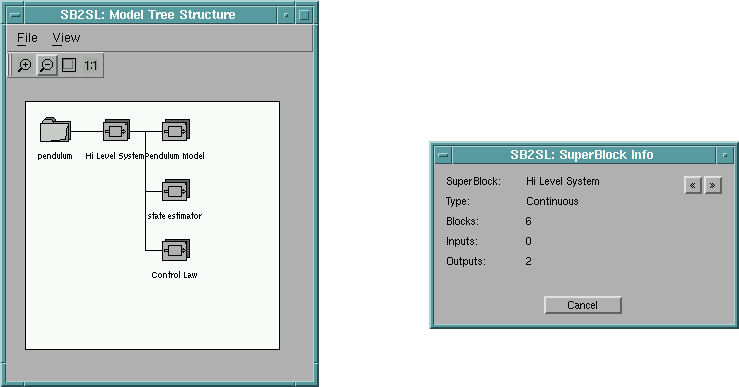
Figure 2: Model Tree Structure and SuperBlock Information Windows
Selecting a SuperBlock Partition for Conversion
A SystemBuild model can contain data in separate partitions associated with each SuperBlock. When you load a SystemBuild model into SB2SL, all associated partitions are loaded into the MATLAB workspace as MATLAB structures. When you use SB2SL to convert a SuperBlock into Simulink, you must select the partition from which to reference the data for building the Simulink model. To choose the desired data partition, select Partition from the Build menu on the main SB2SL GUI. This opens the following window.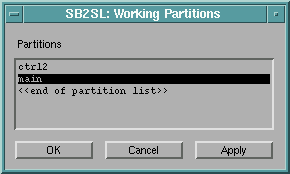
Converting SuperBlocks to Simulink Models
Before converting your SuperBlock to a Simulink model, there are several options you can set for building the model and recording the translation. See "Setting Translation Options" for more information. You are ready to convert your model to Simulink once you have: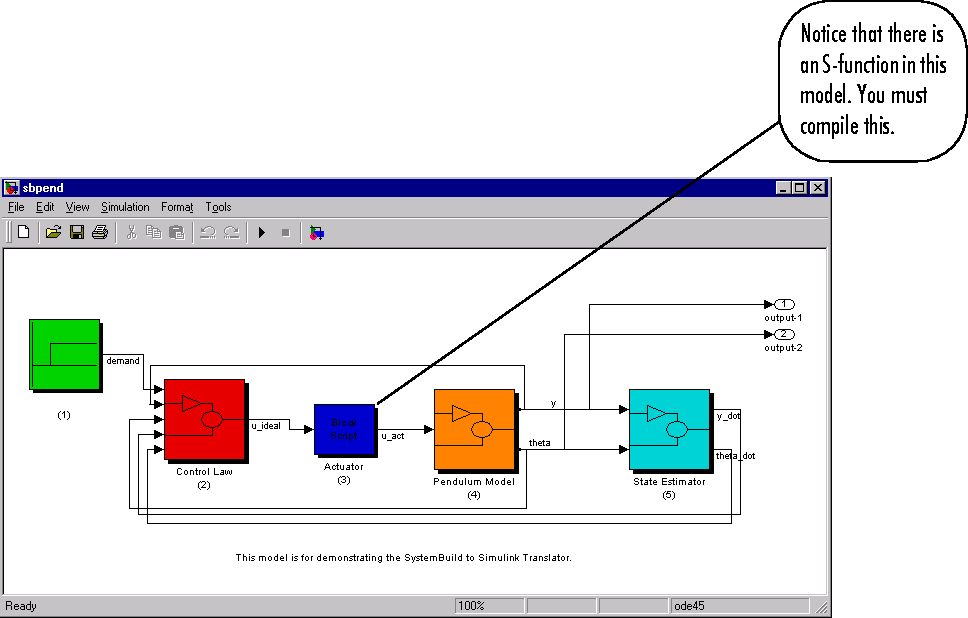
Figure 3: Simulink Model for sbpend.xmd
Compiling Converted BlockScript
When you convert using SB2SL, SystemBuild BlockScript blocks are translated into C code and placed into Simulink S-functions automatically. Choose Compile under the Build menu of the main SB2SL GUI to open the Source Files window. This window lists the S-functions generated by the translated SystemBuild BlockScript.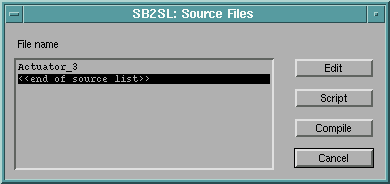
mex command compiles these C code S-functions.
Saving Translated Models and Data
Once the translation is complete, select the Save submenu under the File menu in the main SB2SL GUI to save either your model or your data:PreLoadFcn callback on the Simulink block diagram to reload the model data file the next time the Simulink model is opened. See Using Simulink for details on model callbacks.
Generating a Report
You can generate a report recording the details of your translation after you convert a model with SB2SL. There are several options you may want to set beforehand. See "Report Generation Options" for information on these options. To generate a report with the default option settings, select Report from the Build menu after converting your model.Setting Translation Options
Before you convert your SystemBuild model to Simulink, you can set options for:Translation Build Options
To set the translation build options select the Options menu under Build in the main SB2SL GUI.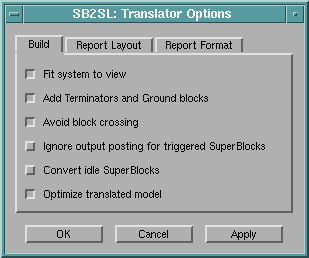
Select this option to terminate unconnected block inputs or outputs with Simulink Terminator or Ground blocks.
Select this option to minimize crossing blocks with signal lines in the Simulink model resulting from SB2SL translation.
When you select this option:
When you select this option, SB2SL maximizes the use of standard Simulink blocks when translating the following SystemBuild blocks:
Report Generation Options
You can use report generation options to select those portions of the SystemBuild data you want to include in a report. Select the Report tab on the Translator Options window to access these options.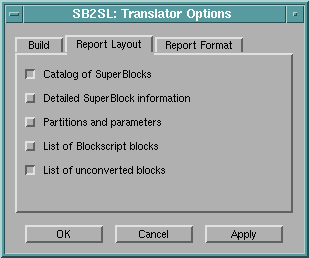
Report Formatting Options
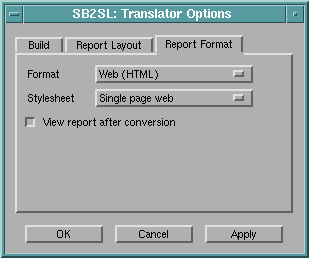
You have the following options for specifying the format of generated reports: