| Report Generator | Search Help Desk |
| Stateflow Snapshot |
Category
StateflowDescription
The Stateflow Snapshot component inserts a snapshot of a Stateflow object (defined by the Stateflow Object Report component) into the report. The Stateflow Snapshot component must have the Stateflow Object Report as its parent. This component only executes if the selected object in the Stateflow Object Report is a graphical object. The following are graphical Stateflow objects:Attributes
This is the Stateflow Snapshot attribute page.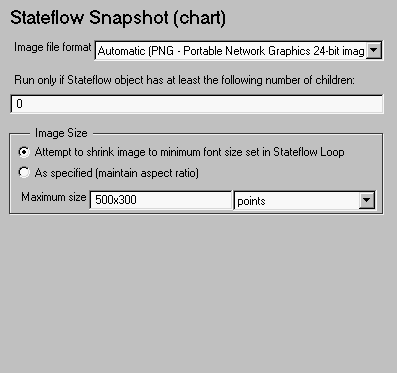 Note:
Note:
JPEG, TIFF, etc.,) from this drop box. To automatically choose the format best suited for the output format that you chose in the Report component, select Automatic, which is the default option. Otherwise, make sure that you choose an image format that your output viewer can read.Image Size
To avoid excessively large images, choose the Attempt to shrink image to minimum legible font size (set in Stateflow Loop) option. The image is displayed as small as possible while keeping the font no smaller than the font size you specify in the Minimum legible font size option in the Stateflow Loop attribute page. To specify an image size, choose the As specified (maintain aspect ratio) option. If you select this option, the image is displayed according to your specifications, while the aspect ratio is maintained. Thus, the image will fit at least one of the dimensions that you specify. The other dimension will change to keep the aspect ratio constant. Specify the image size in the formwxh (width times height) in the Maximum Size field and the units in the corresponding drop box. The image size will not exceed these dimensions.
Insert anything into report?
Yes. Image.Filename
csf_snapshot