Value
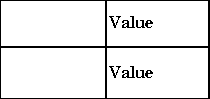
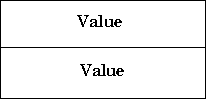
Property Value
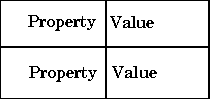
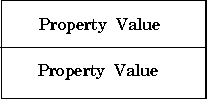
Property Value (note: this is shown as PROPERTY value on the attributes page)
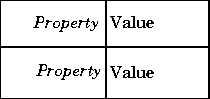
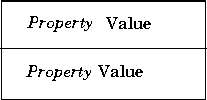
Property: Value
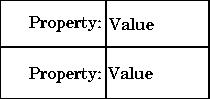
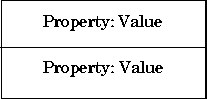
Property: Value
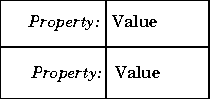
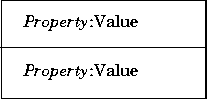
Property - Value
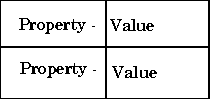
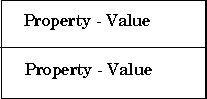
Property - Value
| Report Generator | Search Help Desk |
Property Table Components
This section discusses attributes of property table components. Property table components display property name/property value pairs in a table. For example, the Handle Graphics Figure Property Table component displays The Handle Graphics Figure Property Table attribute page is shown below.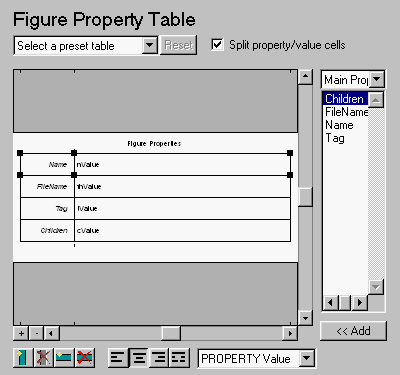
Selecting a Table
You can select a preset table to display property name/property value pairs, or you can create a custom table.Preset Tables
A preset table is a table that is already formatted and set up. You can select a preset table in the preset table drop box in the upper left-hand corner of the attributes page. To apply a preset table, select the table and click on the Reset button. Note that the Reset button is active only when you select a preset table.Custom Tables
To create a custom table, you can first select a preset table and then edit it. You may want to start with the Blank 4x4 preset table. You can add and delete rows and you can add properties. If you want to use a custom table in more than one setup file, use Copy Component and Paste Component from the Edit menu to copy the custom table from one setup file to another.
You cannot save a custom table as a preset table. If you create a table and then select a preset table, all your changes will be lost once you click on the Reset button.
Choosing How a Property Name/Property Value Pair Is Displayed
The following sections discuss property name/property value pair display options.Split Property/Value Cells
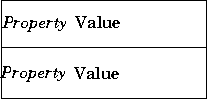
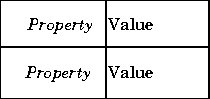
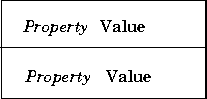
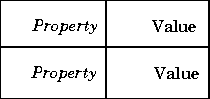
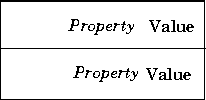
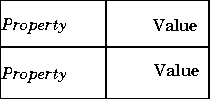
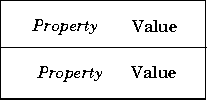
To have the property name and property value appear together in one cell, deselect the Split Property/Value Cells check box. This is the non-split mode. In the non-split mode, you can have more than one property name/property value pair per cell and you can also have additional text. To have the property name and property value appear in adjacent horizontal cells in the table, select the Split Property/Value Cells check box. In this case, the table is in "split" mode and there can only be one property name/property value pair in a cell. If you have more than one pair in the cell in the Setup File Editor, then only the first pair is displayed in the report; all subsequent pairs are ignored.Display Options
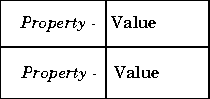
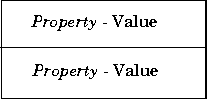
Each table cell in the report can display a property name/property value pair in one of several ways, shown in the table below.Justification Options
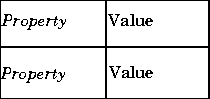
The text in each cell can appear in the report in one of four ways, using the corresponding justification button. You can also right click on the table to invoke the context menu, select Cell justification, and then select one of the options shown below from the menu. These options are shown in the table below (note that theProperty Value display option is shown here).| Option |
Button |
"Split" Mode |
"Non-Split" Mode |
| Left- justified | 
|
 |
 |
| Centered |

|
 |
 |
| Right- justified |
 |
 |
 |
| Double- justified |
 |
 |
|
Putting Text in a Table Cell
You can type text in a table cell in the Setup File Editor. The text appears in the report as long as you are in the non-split mode. To enter text in a cell, double-click on the cell. When a gray box appears in the cell, you are in the edit mode. To exit the edit mode, press the Esc key.
In the edit mode, %<PropertyName> appears in the gray box. If you type text outside the %<>, then it will appear as text in the report. If you type text inside the %<>, it should be a valid property name. If you type an invalid property name, then that property name will appear in the report without a property value.
For example, if you choose to display the property name/property value pair as value, and enter the following in a table cell in the attribute page:
My title: %<Name> is visible=%<visible>and the value of
Name is 'Membrane' and the value of visible is 'on', then the following table cell appears in the report if the cell is in the non-split mode.
 If the table is in the split mode, then the following table cells appear in the report.

Title
The table has a title that you can edit. The title of the table can contain properties and text. The title is always in the non-split mode. If the table has a title, it will appear in the List of Tables. Some stylesheets offer a list of tables. For a list of stylesheets that offer this option, see "Report Format and Stylesheets" in Chapter 2. To enter title text, double click on the title, and enter text in the gray box. To enter a property, follow the steps described in the next section, "Adding a Property".Adding, Replacing, and Deleting Properties to a Table Cell
The following sections discuss how to add, replace, and delete properties to a table cell.Adding a Property
To add a Handle Graphics property to a table cell in the Setup File Editor, follow these steps:Replacing or Deleting Properties
In the non-split mode, you can replace a property in a table cell in the Setup File Editor by following the instructions in "Putting Text in a Table Cell". You can delete a property by backspacing over it. To replace a Handle Graphics property in a cell when the table is in split mode, follow the instructions in "Adding a Property". You cannot use these steps to delete a Handle Graphics property in a cell when the table is in non-split mode, since a cell can have more than one property name/property value pair.Displaying or Hiding Table and Cell Borders
You can toggle the table and cell borders on and off in the Property Table by using the context menu. To toggle a cell border on and off, place your cursor in the desired cell and click the right mouse button to invoke the context menu. Choose Cell borders and then select Top, Bottom, Right, or Left to toggle the desired border on or off.
To toggle the border of the table on and off, use the context menu. Place your cursor over the table and click on the right mouse button to invoke the context menu. Then choose Table frame to toggle the table border on or off.
Adding and Deleting Columns and Rows
To add or delete a column or row, select a cell, and then click on one of the following four buttons.| Press this button: |
To do this: |
 |
Add column (added to the right of the selected column) |
 |
Delete selected column |
 |
Add row (added below the selected row) |
 |
Delete selected row |
Resizing Columns
To resize the column width, click and drag the vertical border between cells.Zooming and Scrolling
While you are editing the table in the setup file, you can zoom in to and out of the table with the zoom buttons, located to the left of the horizontal scroll bar.| Press this button: |
To do this: |
 |
Zoom in |
 |
Zoom out |
Property Table Summary
This completes the discussion of the Property Table component. This section showed you how to edit the Handle Graphics Figure Property Table attribute page to insert a property name/property value table in your report. This section discussed how to: