Using Simulink
If you have never used Simulink before, take some time to get acquainted with its features. The keys to building models with Simulink are model definition and model simulation.
Model Definition
Simulink is a model definition environment. You define a model by creating a block diagram that represents the computations and data flow of your system or application. Try building a simple model:
- 1
- Select New from the Simulink File menu. A new block diagram window
appears on your screen.
- 2
- Double-click on the Sources, Sinks, and Discrete icons in the Simulink
window. The Sources, Sinks, and Discrete libraries appear on your screen.
- Alternatively, you can view the libraries' contents by clicking the
 symbol
in the Library Browser to expand the hierarchical list.
symbol
in the Library Browser to expand the hierarchical list.
- 3
- Drag the Signal Generator block from the Sources library into the new block
diagram window.
- 4
- Drag the Discrete Filter block from the Discrete library into the new block
diagram window.
- 5
- Drag the Scope block from the Sinks library into the new block diagram
window.
- 6
- Connect the blocks.
- Position the cursor near the output port of the Signal Generator block. Hold
down the mouse button (the left button for a multibutton mouse) and drag
the line that appears until it touches the input port of the Discrete Filter
block. Using the same technique, connect the output of the Discrete Filter
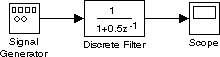
block to the input port of the Scope block. Your model looks like this:
- 7
- Set the block parameters:
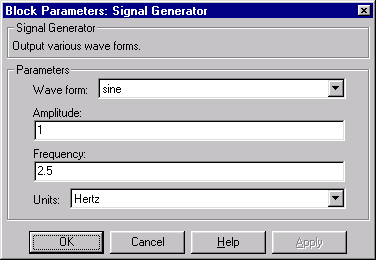
- Double-click on the Signal Generator block. A window appears that lets
you set the block's parameters. Parameters are defining values that tell
the block how to operate. For this example, select sine from the Wave
form pop-up menu. Set the Frequency to
2.5 by typing in the text field.
- Double-click on the Discrete Filter block. Set the Denominator field to
[1 -0.9], or enter the name of a MATLAB workspace variable that
contains this vector. Set the Sample time parameter to 0.01. Close the
dialog box by clicking on the OK button or by pressing Enter on the
keyboard.
- Double-click on the Scope block. Right-click on the vertical axis and select
Axis properties from the pop-up menu. Set Y max to
7 and Y min to -7.
Click OK.
- 8
- In the model window, select Parameters from the Simulation menu. Set
Stop time to
4 and click OK.
Model Simulation
Simulink is also a model simulation environment. You can run the simulation block diagram that you built to see how the system behaves. To do this:
- 1
- Double-click on the Scope block if the Scope window is not already open on
your screen. A scope window appears.
- 2
- Select Start from the Simulation menu for the block diagram window.
- When you select Start, the simulation progresses according to an underlying
integration routine for continuous blocks, or a sample rate for discrete
blocks. For this model, and for most models constructed with the DSP
Blockset, the blocks process their inputs at a discrete sample interval.
- 3
- Experiment with the block parameters. To change block parameters during
the simulation:
- Select Parameters from the Simulation menu and change the Stop time
to
inf. The inf setting instructs Simulink to run the model for as long as
the computer's memory allows.
- Double-click on the Signal Generator block to open it.
- Select Start from the Simulation menu to start the simulation.
- Change the frequency of the sine wave in the Signal Generator block. Try
typing
1, 0.1, and 0.01 in the Frequency field, pressing Apply after
entering each new value. Observe the changes on the scope.
- Many blocks have parameters that you cannot change while a simulation is
running. There are some parameters, however, that you can tune without
terminating the simulation. In Chapter 4, "DSP Block Reference," these
parameters are designated by a
 icon, indicating that they are tunable
while the simulation runs.
icon, indicating that they are tunable
while the simulation runs.
- 4
- Select Stop from the Simulation menu to stop the simulation.
Running a Simulation from an M-File.
You can also modify and run a Simulink simulation from within a MATLAB M-file. By doing this, you can automate the variation of model parameters to explore a large number of simulation conditions rapidly and efficiently. For information on how to do this, see "Increasing Performance" at the end of this chapter, and "Running a Simulation from the Command Line" in Chapter 4 of Using Simulink.
[ Previous | Help Desk | Next ]