yearlySales table in the tutorial database in Access to be sure
the data was imported correctly.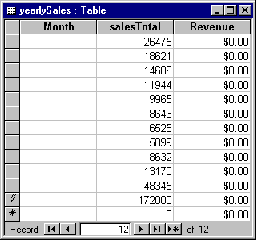
| Database Toolbox User's Guide | Search Help Desk |
Exporting Multiple Records from MATLAB
In this example, multiple records are imported, manipulated in MATLAB, and then exported to a database. Specifically, you import sales figures for all products, by month, into MATLAB. Then you compute the total sales for each month. Finally, you export the monthly totals to a new table. You use this Database Toolbox command: If you want to see or copy the commands for this part of the tutorial, or if you want to run the set of commands, use the M-filematlab\toolbox\database\dbdemos\dbinsert2demo.m.
tutorial database that
shipped with the Database Toolbox. It is in the
matlab\toolbox\database\dbdemos directory. Refer to the directions in
"Setting Up a Data Source". Name the data source tutorial and
for the description, type Tutorial for inserting multiple records.
conn = database('tutorial', '', '')
conn. You do not need a user
name or password to access the tutorial database.
salesVolume
table. Type:
curs = exec(conn, 'select * from salesVolume');
curs = fetch(curs)
columnnames(curs)

ans =
'Stock Number', 'January', 'February', 'March', 'April', 'May',
'June', 'July', 'August', 'September', 'October', 'November',
'December'
curs.data(:,2)

ans =
        5000
        3000
        2500
        4300
        1200
        3500
        1800
        2400
        1400
        1375
m and n. In a later step, you use these values to compute the
monthly totals.
[m,n] = size(curs.data)

m =
    10
n =
    13
for i = 2:n
    monthly(i-1,1) = sum(curs.data(:,i))
end
monthly, in which each row is the total sales
volume of all products for that month. For example, when i is 2, row 1 of
monthly is the total of all rows in column 2 of curs.data, column 2 being the
sales volume for January.
monthly =
       26475
       18621
       14606
       11944
        9965
        8643
        6525
        5899
        8632
       13170
       48345
      172000
monthlyTotals = num2cell(monthly)
num2cell takes the data in monthly and assigns each row to a row in a new
cell array, monthlyTotals, which you will export in a later step.
salesTotal column of the yearlySales table; here we assign the variable
colNames to the array. Type:
colNames{1,1} = 'salesTotal'
yearlySales table - type:
insert(conn, 'yearlySales', colNames, monthlyTotals)
yearlySales table in the tutorial database in Access to be sure
the data was imported correctly.close(curs) close(conn)