Searching Based on Multiple Conditions
Example
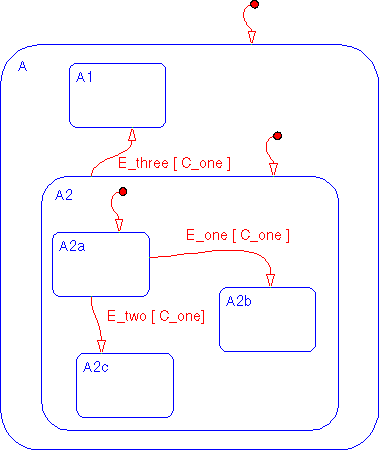
This Stateflow diagram is used to show how to search based on multiple conditions.
- 1
- Select Find... from the Tools menu of the Stateflow graphics editor window
to invoke the Finder.
- 2
- Click in the Look for text field and enter
A2.
- 3
- Click on and enable the Normal/Wildcard radio box.
- 4
- Ensure that the States object type is checked. A checkmark indicates that
the object is included in the search criteria. By default, all object types are
included in the search criteria. Deselect all other object types.
- 5
- Click on the Search button. These are the results of the search.
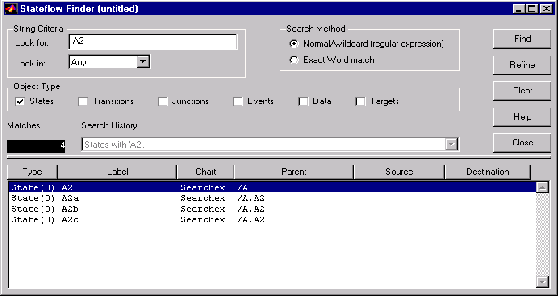
- There are four matches. The Search History shows that the current search
criterion is
States with 'A2'. The display shows the matches.
[ Previous | Help Desk | Next ]