Adding Data to the Data Dictionary
You can use either the Stateflow editor or Explorer to add data that is accessible only in a specific chart. You must use the Stateflow Explorer to add data that is accessible everywhere in a state machine or only in a specific state.
Using the Stateflow Editor
To use the Stateflow editor to add data:
- 1
- Select the data's scope (see "Data Properties") from the Data
submenu of the Stateflow editor's Add menu.
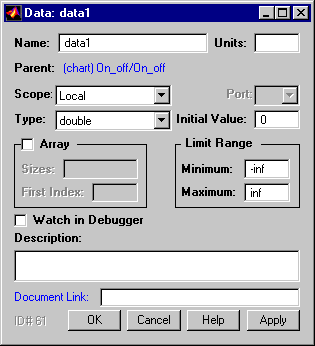
- Stateflow adds a default definition of the new item to the Stateflow data
dictionary and displays a Data dialog that displays the new item's default
properties.
- 2
- Use the Data dialog to set the new item's properties to reflect its intended
usage (see "Setting Data Properties").
Using the Explorer
To use the Stateflow Explorer to define a data item:
- 1
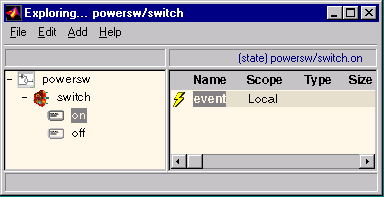
- Select Explore from the Stateflow editor's Tools menu.
- Stateflow opens the Explorer.
- 2
- Select the object (state machine, chart, or state) in the Explorer's object
hierarchy pane where you want the new item to be accessible.
- 3
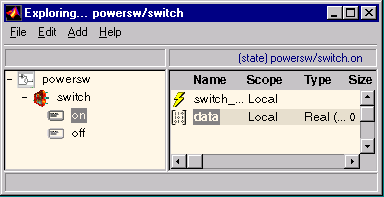
- Select Data from the Explorer's Add menu.
- Stateflow adds a default definition for the new item in the data dictionary
and displays an entry for the item in the Explorer's content pane.
- 4
- Set the new item's properties to values that reflect its intended usage (see
"Setting Event Properties").
[ Previous | Help Desk | Next ]