| Using Simulink | Search Help Desk |
Entering Simulink Commands
You run Simulink and work with your model by entering commands. You can enter commands by:Using the Simulink Menu Bar to Enter Commands
The Simulink menu bar appears near the top of each model window. The menu commands apply to the contents of that window.Using Context-Sensitive Menus to Enter Commands
The Windows version of Simulink displays a context-sensitive menu when you click the right mouse button over a model or block library window. The contents of the menu depend on whether a block is selected. If a block is selected, the menu displays commands that apply only to the selected block. If no block is selected, the menu displays commands that apply to a model or library as a whole.Using the Simulink Toolbar to Enter Commands
Model windows in the Windows version of Simulink optionally display a toolbar beneath the Simulink menu bar. To display the toolbar, check the Toolbar option on the Simulink View menu.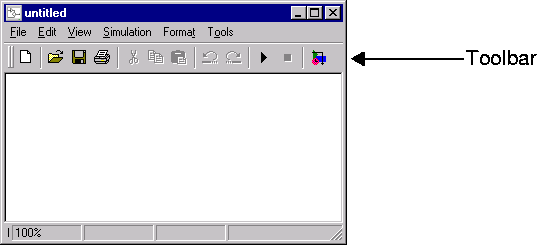
Using the MATLAB Window to Enter Commands
When you run a simulation and analyze its results, you can enter MATLAB commands in the MATLAB command window. Running a simulation is discussed in Chapter 4, and analyzing simulation results is discussed in Chapter 5.Undoing a Command
You can cancel the effects of up to 101 consecutive operations by choosing Undo from the Edit menu. You can undo these operations: