| Using Simulink | Search Help Desk |
Using the Model Browser on UNIX
To open the Model Browser, select Show Browser from the File menu. The Model Browser window appears, displaying information about the current model. This figure shows the Model Browser window displaying the contents of theclutch system.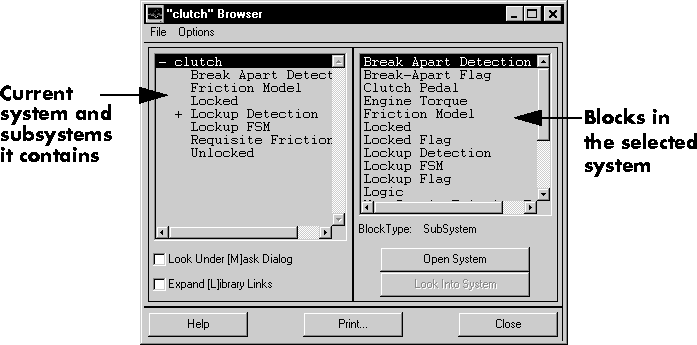
Contents of the Browser Window
The Model Browser window consists of:Interpreting List Contents
Simulink identifies masked blocks, reference blocks, blocks with definedOpenFcn parameters, and systems that contain subsystems using these symbols before a block or system name:
OpenFcn) callback is defined for the block. For more information about block callbacks, see "Using Callback Routines".
Opening a System
You can open any block or system whose name appears in the blocks list. To open a system:Looking into a Masked System or a Linked Block
By default, the Model Browser considers masked systems (identified by [M]) and linked blocks (identified by [L]) as blocks and not subsystems. If you click on Open System while a masked system or linked block is selected, the Model Browser displays the system or block's dialog box (Open System works the same way as double-clicking on the block in a block diagram). Similarly, if the block'sOpenFcn callback parameter is defined, clicking on Open System while that block is selected executes the callback function.
You can direct the Model Browser to look beyond the dialog box or callback function by selecting the block in the blocks list, then clicking on Look Into System. The Model Browser displays the underlying system or block.
Displaying List Contents Alphabetically
By default, the systems list indicates the hierarchy of the model. Systems that contain systems are preceded with a plus sign (+). When those systems are expanded, the Model Browser displays a minus sign (-) before their names. To display systems alphabetically, select the Display Alphabetical List menu item on the Options menu.