| Using Simulink | Search Help Desk |
Copying a Library Block into a Model
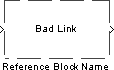
You can copy a block from a library into a model by copying and pasting or dragging the block from the library window to the model window (see "Copying and Moving Blocks from One Window to Another") or by dragging the block from the Library Browser (see "Browsing Block Libraries") into the model window. When you copy a library block into a model or another library, Simulink creates a link to the library block. The reference block is a copy of the library block. You can modify block parameters in the reference block but you cannot mask the block or, if it is masked, edit the mask. Also, you cannot set callback parameters for a reference block. If you look under the mask of a reference block, Simulink displays the underlying system for the library block. The library and reference blocks are linked by name; that is, the reference block is linked to the specific block and library whose names are in effect at the time the copy is made. If Simulink is unable to find either the library block or the source library on your MATLAB path when it attempts to update the reference block, the link becomes unresolved. Simulink issues an error message and displays these blocks using red dashed lines. The error message isFailed to find block "The unresolved reference block is displayed like this (colored red).source-block-name" in library "source-library-name" referenced by block "reference-block-path".
LinkStatus parameter that indicates whether the block is a reference block. The parameter can have these values:
'none' indicates that the block is not a reference block.
'resolved' indicates that the block is a reference block and that the link is resolved.
'unresolved' indicates that the block is a reference block but that the link is unresolved.