| Using Simulink | Search Help Desk |
Browsing Block Libraries
The Library Browser lets you quickly locate and copy library blocks into a model.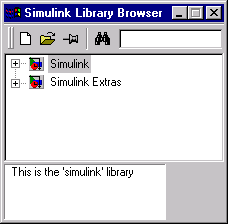
Navigating the Library Tree
The library tree displays a list of all the block libraries installed on the system. You can view or hide the contents of libraries by expanding or collapsing the tree using the mouse or keyboard. To expand/collapse the tree, click the +/- buttons next to library entries or select an entry and press the +/- or right/left arrow key on your keyboard. Use the up/down arrow keys to move up or down the tree.Searching Libraries
To find a particular block, enter the block's name in the edit field next to the Library Browser's Find button and then click the Find button.Opening a Library
To open a library, right-click the library's entry in the browser. Simulink displays an Open Library button. Select the Open Library button to open the library.Creating and Opening Models
To create a model, select the New button on the Library Browser's toolbar. To open an existing model, select the Open button on the toolbar.Copying Blocks
To copy a block from the Library Browser into a model, select the block in the browser, drag the selected block into the model window, and drop it where you want to create the copy.Displaying Help on a Block
To display help on a block, right-click the block in the Library Browser and select the button that subsequently pops up.Pinning the Library Browser
To keep the Library Browser above all other windows on your desktop, select the PushPin button on the browser's toolbar.