


| Report Generator | Search Help Desk |
| Model Loop |
Category
SimulinkDescription
The Model Loop component runs its subcomponents for all selected Simulink models and systems. The Model Loop component can run its subcomponents for a specific model, such as the demo model F14, or it can run its subcomponents for all models or the current model. Because Simulink components are context-sensitive, they should be parented by the Model Loop (although the Model Loop does not have to be the immediate parent of some Simulink components).Attributes
This is the Model Loop attribute page.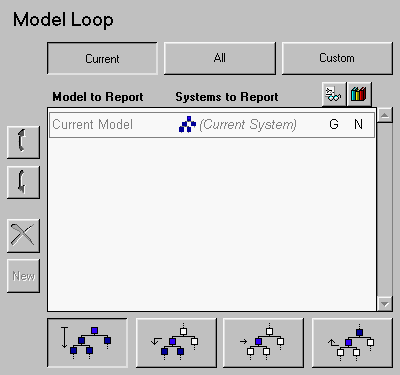 Note:
Note:
Choosing Models to Report On
You can report on:bdroot in the MATLAB command window.
Reporting on All Models
If you want to report on all models that are currently open, click on the All button.
Reporting on Custom Models
If you want to report on a custom set of models and systems, click on the Custom button.
The Model to Report column, which contains a list of reported models, is initially empty. Type the name of the model in this column. Press the Esc key when you are finished.
To add another model to the list, click on the New button; an empty row will appear.
The following table shows you which button you should use to move a model up or down in the list, or to add or delete a model.| Use this button: |
To do this: |
|
To move a model up in the list |
|
To move a model down in the list |
|
To remove a model from the list |
|
To add a model to the list |
Choosing Systems to Report On
For each of the model reporting options (Current, All and Custom), you can select the systems that will be included in the report for each model. You can select the systems that are reported from the Systems to Report column.Specifying the Current System for the Reported Model
You can specify the current system in the reported model for the following reported systems:Select the system you want to include and click on OK. The system you select is now displayed in the Systems to Report column.
For example, choose the custom model option and click in the Model to Report column. Type f14 in the Model to Report column. Choose to report on the current system and all the systems above it by clicking on the button shown below.

Click in the Systems to Report column. The Select "Current" Systems window, shown below, lists all of the systems in the f14 model.
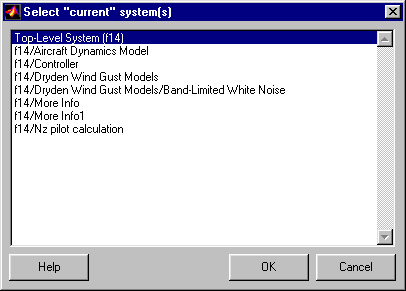
Select f14/Controller and then click on Ok. The Systems to Report column now has the following entry: (f14/Controller). F14 and F14/Controller are included in the report.
If you choose to report on multiple systems, and you are reporting on the current system, then the systems you have selected are included in the report.
If you choose to report on multiple systems, and you are reporting on the current system and all the systems above it, then all the systems you have selected and all the systems above them are included in the report.
If you choose to report on multiple systems, and you are reporting on the current system and all of its subsystems, then all the systems you have selected and all their subsystems are included in the report. The subsystems that are included in the report depend on the options you choose for following library links and for looking under masks. These two options are discussed in the next two sections.
Following Library Links
Simulink blocks and systems can be linked to a library. See Using Simulink for more information about library links. Invoke the context menu to toggle the Follow library links option on and off. The following table shows the options for reporting on blocks or systems with library links. Select the option by clicking on the option letter until it changes to the letter of your choice. These options are available if you are reporting on one of the following:Looking Under Masks
Simulink systems can have masks. The masks can be functional or graphical. See Using Simulink for more information about masks. The following table shows the options for reporting on masked systems. Select the option by clicking on the option letter until it changes to the letter of your choice. These options are available if you are reporting on one of the following:Insert anything into report?
No.Filename
csl_mdl_loop


