| Report Generator | Search Help Desk |
| Graphics Figure Snapshot |
Category
Handle GraphicsDescription
The Graphics Figure Snapshot component inserts a snapshot of a Handle Graphics figure.Attributes
This is the Graphics Figure Snapshot attribute page.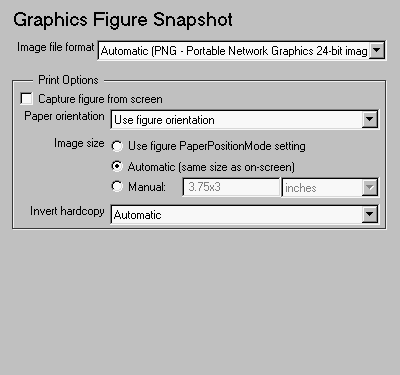 Note:
Note:
Automatic, which is the default option. Otherwise, make sure that you choose an image format that your output viewer can read.Print Options
Use the attributes in this section to set printing parameters.PaperOrientation parameter of the Handle Graphics figure. See Using MATLAB Graphics for a discussion of the PaperOrientation parameter.PaperPositionMode parameter of the Handle Graphics figure to set the image size in the report. See Using MATLAB Graphics for a discussion of the PaperPositionMode parameter.wxh (width times height). This field is active only if you choose Manual in the Image size list box.
InvertHardcopy parameter. This parameter inverts colors for printing; i.e., it changes dark colors to light colors and vice versa. For more information, see Using MATLAB Graphics. Automatic - Select this option to automatically change dark axes colors to a light axes color. If the axes color is a light color, then it will not be inverted.
Invert - Select this option to change dark axes colors to light axes colors and vice versa.
Don't invert - Select this ooptionif you do not want to change the colors in the image displayed on the screen for printing.
Use figure's InvertHardcopy setting - Select this option to use the InvertHardcopy parameter set in the Handle Graphics image.
Insert anything into report?
Yes. Image.Filename
chgfigsnap