| Report Generator | Search Help Desk |
Getting Started With the Setup File Editor
To open the Setup File Editor, typesetedit in the MATLAB command window; this opens a new (empty) setup file. If you type setedit <setupfilename>, the Setup File Editor opens, displaying the setup file for that report. For example, if you type setedit magic-square, the following window will appear.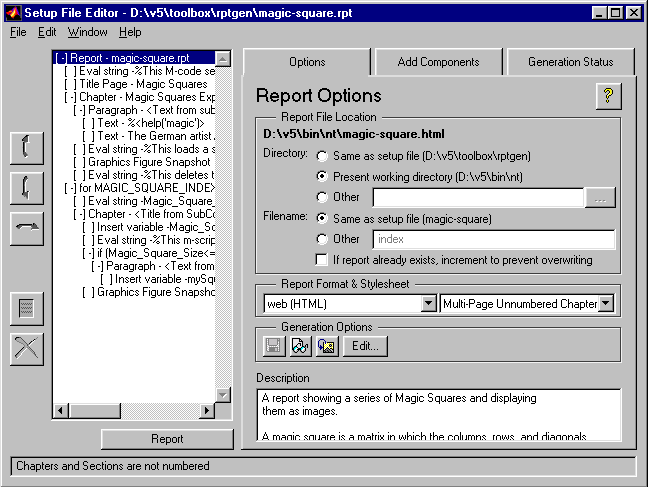
Elements of the Setup File Editor
Setup File Outline
The outline of the current setup file is in the left pane of the window. The outline shows all of the components in the current setup file. Components are self-contained, modular elements that control the report generation process and insert elements into a report. Some components can contain other components, which are then called subcomponents or child components. Subcomponents or child components are shown indented under their parent components. Components and the relationships between child and parent components are discussed in Chapter 6.Tab Dialog
The right pane of the setup file window contains three tabs:Menu Bar
The Setup File Editor also contains a menu bar with the following menus:Generating a Report
To generate a report using the Setup File Editor, click on the Report button, which is located under the setup file outline in the Setup File Editor. You can also select Report from the File menu. A report containing the components listed in setup file outline will be generated on any M-file, Simulink model, or Stateflow model. While the report is in the process of generating, the Report button changes to the Stop button and all other controls (buttons and menus) are inactive. In addition, as each component executes, it is highlighted in the setup file outline.Report Generation Cleanup
After the report is finished generating, the Report Generator closes all images, models, Stateflow windows, and Target Language Compiler™ (TLC) handles that were opened in the report generation process.Halting Report Generation
During report generation, the Report button changes to the Stop button. To stop report generation, click on the Stop button, which is located under the setup file outline in the Setup File Editor.