Read audio data from a standard audio device in real-time (Windows 95/98/NT only).
Library
DSP Sources
Description
The From Wave Device block reads audio data from a standard Windows audio device in real-time. It is compatible with most popular Windows hardware, including Sound Blaster® cards. (Models that contain both this block and the To Wave Device block require a duplex-capable sound card.)
The Use default audio device parameter allows the block to detect and use the system's default audio hardware. This option should be selected on systems that have a single sound device installed, or when the default sound device on a multiple-device system is the desired source. In cases when the default sound device is not the desired input source, deselect Use default audio device, and enter the desired device identification number in the Audio device ID parameter. The device ID is an integer value that the block associates with the sound device. A 3-device system, for example, has device ID numbers of 1, 2, and 3.
The output from the block, y, is a vector containing a length-M frame of audio data from a mono signal, or an M-by-2 matrix containing one frame of audio data from each channel of a stereo signal. If the audio source contains two channels, the Stereo check box should be selected. The frame size, M, is specified by the Samples per frame parameter.
The amplitude of the input from the sound device should be in the range ±1. Values outside this range are clipped to the nearest allowable value. If the audio signal is saturating at ±1, you can reduce the microphone gain from the Multimedia Properties window (available through the Windows 95/98/NT Control Panel). The audio data is processed in uncompressed PCM (pulse code modulation) format, and should typically be sampled at one of the standard Windows audio device rates: 8000, 11025, 22050, or 44100 Hz. You can select one of these rates from the Sample rate parameter. To specify a different rate, select the User-defined option and enter a value in the User-defined sample rate parameter.
The Sample Width (bits) parameter specifies the number of bits used to represent the signal samples read by the audio device. Two settings are available:
The 16-bit sample width setting requires more memory but yields better fidelity. The output from the block is independent of the Sample Width (bits) setting, and is always double precision.
Buffering
Since the audio device accepts real-time audio input, Simulink must read a continuous stream of data from the device throughout the simulation. Delays in reading data from the audio hardware can result in hardware errors or distortion of the signal. This means that the From Wave Device block must in principle read data from the audio hardware as quickly as the hardware itself acquires the signal. However, the block often cannot match the throughput rate of the audio hardware, especially when the simulation is running from within Simulink rather than as generated code. (Simulink operations are generally slower than comparable hardware operations, and execution speed routinely varies during the simulation as the host operating system services other processes.) The block must therefore rely on a buffering strategy to ensure that signal data can be read on schedule without losing samples.
At the start of the simulation, the audio device begins writing the input data to a (hardware) buffer with a capacity of Tb seconds. The From Wave Device block immediately begins pulling the earliest samples off the buffer (first on, first off) and collecting them in length-M frames for output. As the audio device continues to append inputs to the front of the buffer, the From Wave Device block continues to pull inputs off the back of the buffer at the best possible rate.
The following figure shows an audio signal being acquired and output with a frame size of 8 samples. The buffer of the sound board is approaching its five-frame capacity at the instant shown, which means that the hardware is adding samples to the buffer more rapidly than the block is pulling them off. (If the signal sample rate was 8kHz, this small buffer could hold approximately 0.005 seconds of data.
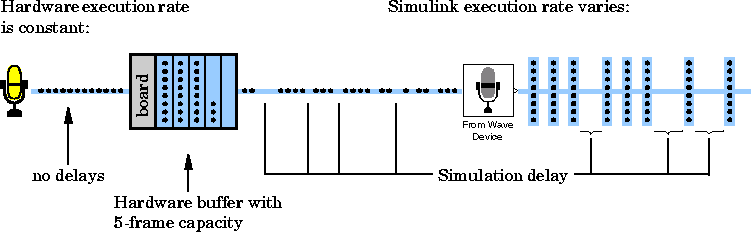
If the simulation throughput rate is higher than the hardware throughput rate, the buffer remains empty throughout the simulation. If necessary, the From Wave Device block simply waits for new samples to become available on the buffer (the block does not interpolate between samples). More typically, the hardware throughput rate is higher than the simulation throughput rate, and the buffer tends to fill over the duration of the simulation.
If the buffer size is too small in relation to the simulation throughput rate, the buffer may fill before the entire length of signal is processed. This usually results in a device error or undesired device output. When the device fails to process the entire signal length because the buffer prematurely fills, you can choose to either increase the buffer size or the simulation throughput rate:
The Queue duration parameter specifies the duration of signal, Tb (in real-time seconds), that can be buffered in hardware during the simulation. Equivalently, this is the maximum length of time that the block's data acquisition can lag the hardware's data acquisition. The number of frames buffered is approximately
where Fs is the sample rate of the signal and M is the number of samples per frame. The required buffer size for a given signal depends on the signal length, the frame size, and the speed of the simulation. Note that increasing the buffer size may increase model latency.
Two useful methods for improving simulation throughput rates are increasing the signal frame size and compiling the simulation into native code.
More general ways to improve throughput rates include simplifying the model, and running the simulation on a faster PC processor. See "Increasing Performance" in Chapter 2 of this book, and "Improving Simulation Performance and Accuracy" in Chapter 4 of Using Simulink, for other ideas on improving simulation performance.
Dialog Box
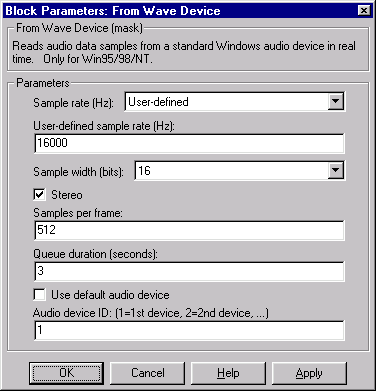
- Sample rate (Hz)
- The sample rate of the audio data to be acquired. Select one of the standard Windows rates or the User-defined option.
- User-defined sample rate (Hz)
- The (nonstandard) sample rate of the audio data to be acquired.
- Sample width (bits)
- The number of bits used to represent each signal sample.
- Stereo
- Specifies stereo (two-channel) inputs when checked, mono (one-channel) inputs when unchecked.
- Samples per frame
- The number of audio samples in each successive output frame.
- Queue duration (seconds)
- The length of signal (in seconds) to buffer to the hardware at the start of the simulation.
- Use default audio device
- Reads audio input from the system's default audio device when selected. Deselect to enable the Audio device ID parameter and manually enter a device ID number.
- Audio device ID
- The number of the audio device from which to read the audio output. In a system with several audio devices installed, a value of
1 selects the first audio card, a value of 2 selects the second audio card, and so on. Select Use default audio device if the system has only a single audio card installed.
See Also
From Wave File
To Wave Device
[ Previous | Help Desk | Next ]
