Avg_Freight_Cost table to verify the results.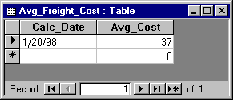
| Database Toolbox User's Guide | Search Help Desk |
Exporting Data from MATLAB to a New Record in a Database
In this part of the tutorial, you retrieve a set of data, perform a simple calculation on the data using MATLAB, and export the results as a new record to another table in the database. Specifically, you retrieve freight costs from an orders table, calculate the average freight cost, put the data into a cell array to export it, and then export the data (the average freight value and the number of shipments on which the average was based) to an empty table. You use these Database Toolbox commands: If you want to see or copy the commands for this part of the tutorial, or if you want to run the set of commands, use the M-filematlab\toolbox\database\dbdemos\dbinsertdemo.m.
Northwind database in Access. Create a new table called
Avg_Freight_Cost that has two columns, Calc_Date and Avg_Cost. For the
Calc_Date field, use the default Data Type, which is Text, and for the
Avg_Cost field, set the Data Type to Number. Be sure to close the table;
Access then warns you that there is no primary key, but you do not need one.
DATE, or you will not be able to import data into the database - see Access help for a list of Access reserved words.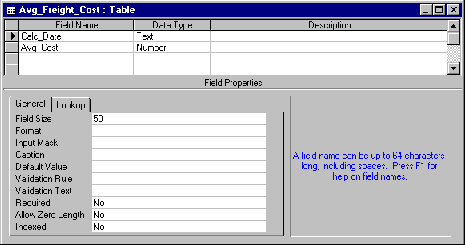
SampleDB. Type:
connA = database('SampleDB', '', '')
freight column of data from the orders table. To
keep the example simple, import only three rows of data. Type:
cursorA = exec(connA, 'select freight from orders');
cursorA = fetch(cursorA, 3)
AA = cursorA.data
AA =
    [32.3800]
    [11.6100]
    [65.8300]
rowsA to
the number of rows in the array. Then convert the cell array to a vector and
calculate the average, assigning the result to the variable meanA.
rowsA = rows(cursorA);
meanA = sum([AA{:}])/rowsA

meanA =
   36.6067
D to the date on which these orders were shipped - type:
D = '1/20/98'

D =
1/20/98
C to the cell array and defines C as being 1 row by
2 columns.
C = cell(1,2)

C =
     []     []
C(1,1) = {D}

C =
    '1/20/98'    []

C(1,2) = {meanA}

C =
    '1/20/98'    [36.6067]
Avg_Freight_Cost
table you created earlier, Calc_Date and Avg_Cost. Assign the variable
colnames to the cell array containing the column names. Type:
colnames = {'Calc_Date','Avg_Cost'}

colnames =
    'Calc_Date'    'Avg_Cost'
autocommit flag for the database. The status of the autocommit flag
determines if the database data will be automatically committed or not - if
the flag is off, you can undo an update.
autocommit flag using the get command - type:
get(connA, 'autocommit')

ans =
on
autocommit flag is set to on so exported data will be automatically
committed. In this example, keep the autocommit flag on; for a Microsoft
Access database, this is the only option.
Avg_Freight_Cost table. For this example, type:
insert(connA, 'Avg_Freight_Cost', colnames, C)
connA is the connection structure for the database to which you are
exporting data. In this example, the database to which you are exporting
data is SampleDB, for which there is already an open connection, connA.
However, if you are exporting to a different database, use the database
command to connect to it before exporting the data.
Avg_Freight_Cost is the name of the table to which you are exporting data.
In the insert command, you also include the colnames cell array and the cell
array containing the data you are exporting, C, both of which you defined in
the previous steps.
insert appends the data as a new record at the end of the
Avg_Freight_Cost table.
insert command.
??? Error using ==> cursor/cursor
[Microsoft][ODBC Microsoft Access 7.0 Driver] Table
'Avg_Freight_Cost' is exclusively locked by user '' on machine ''
Avg_Freight_Cost table to verify the results.Avg_Cost value was rounded to a whole number to match the
properties of that field in Access.
close(cursorA)
close(connA)
Avg_Freight_Cost table in Access because you
will use it in the next part of the tutorial.