Testing Your Hardware
Testing Your Sound Card
Before using the Data Acquisition Toolbox, you should make sure your sound card works properly. You can check your sound card by recording data and then playing back the recorded data. Recording data uses the sound card's analog input (A/D) subsystem, while playing back data uses the sound card's analog output (D/A) subsystem. Successful completion of these two tasks indicates your sound card works properly, and you will be able to access all the Data Acquisition Toolbox functionality.
The data to be recorded can come from two sources:
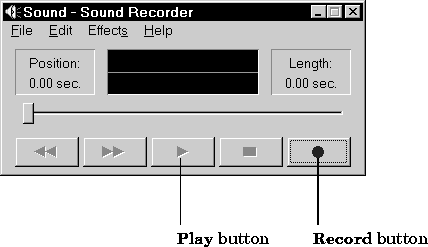
In either case, you will record and play back data using Microsoft's Sound Recorder. To invoke this program:
Start>Program>Accessories>Multimedia>Sound Recorder
The figure below shows how to record and play back data.
 You must also make sure that your microphone or CD player is enabled for recording and playback. To check this, invoke the Volume Control
Start>Program>Accessories>Multimedia>Volume Control
The Volume Control panel is shown below.
You must also make sure that your microphone or CD player is enabled for recording and playback. To check this, invoke the Volume Control
Start>Program>Accessories>Multimedia>Volume Control
The Volume Control panel is shown below.
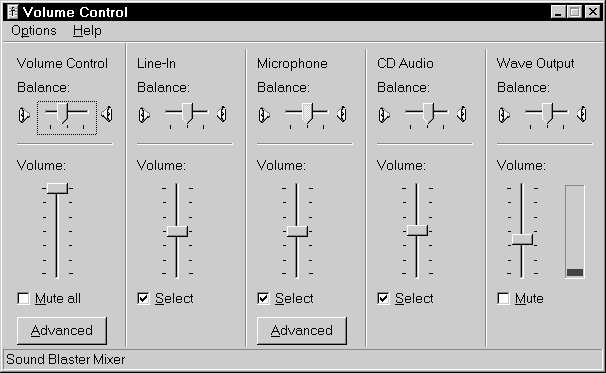
The input devices are enabled for playback by checking the Select checkbox, and WAV files can be played back by leaving the Mute checkbox unchecked. If the microphone, CD, or Wave Output entries do not appear in the Volume Control panel, you must modify the playback properties by selecting Options>Properties from the Volume Control menu. The Properties dialog box is shown below. Select the appropriate device checkbox to enable playback.
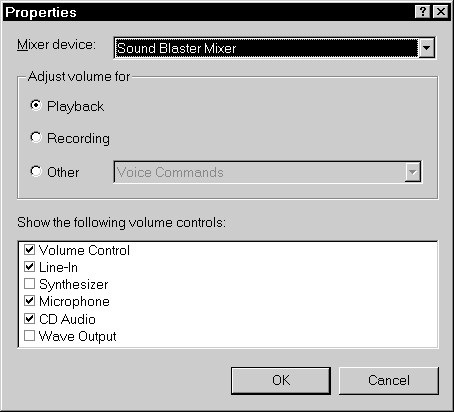
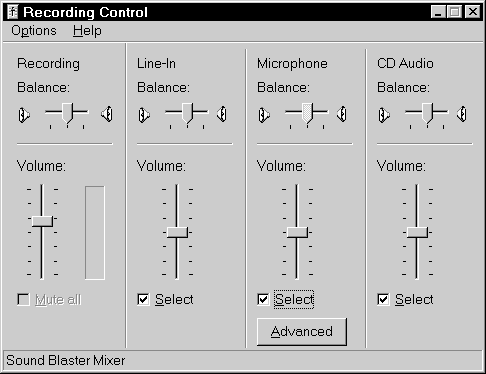
To check if the CD and microphone are enabled for recording, select the Recording radio button in the Properties dialog box, and then select the appropriate device checkbox to enable recording. The Recording Control panel is shown below.
[ Previous | Help Desk | Next ]