Reversing Figure Colors
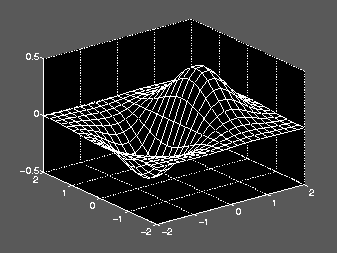
With the colordef command, it is possible to configure the default figure background color to black and the axis lines and labels to white. This color scheme provides good contrast on the computer screen, but is less desirable when printed on white paper by a black and white device such as a laser printer.
The figure InvertHardcopy property provides a simple way to convert the printed output to a white background. When InvertHardcopy is on (the default), MATLAB automatically inverts the color scheme to black-on-white output.
This mesh plot of a surface has a white EdgeColor. The white-on-black coloring produces a large black area on the printed page that results in poor discrimination between the mesh and background, particularly on low resolution printers.
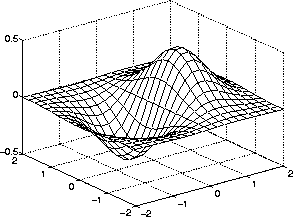
With InvertHardcopy enabled, MATLAB automatically produces output more suited to printing in black and white. Here is the same mesh plot after reversing the color scheme.
What Happens to Colors When Printing in B&W?
MATLAB changes the figure background color to white (and also changes the axes color unless it is set to none). Colors print in shades of gray on devices capable of printing grays.
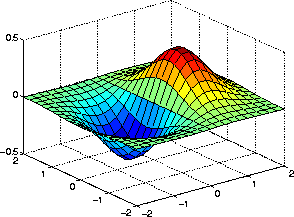
For example, this surface uses the jet colormap and is printed with InvertHardcopy set to on.
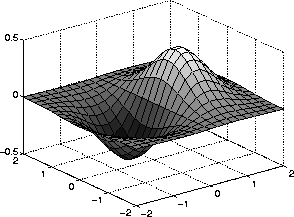
In cases where you want to print colored objects in grayscale, you should use a colormap that varies continuously from dark to light, such as gray, copper, or bone. The same surface using the gray colormap prints in predictable shading.
[ Previous | Help Desk | Next ]