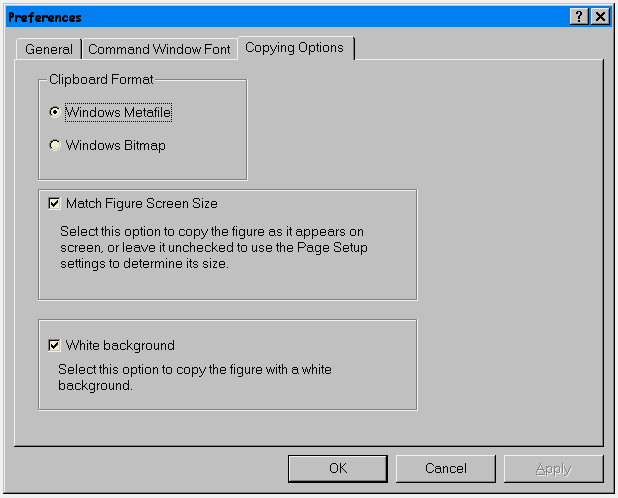
MS-Windows Copy Options
On the PC, you can import a MATLAB graphic into another application by copying the figure to the clipboard in Windows Bitmap or Windows Enhanced Metafile format, and then pasting the graphic into the target application.
There are two ways to copy a figure to the clipboard:
You then import the graphic into another application by using the Paste command.
Specifying Copy Options
You can set copy options using the Copy Options dialog box, which is located in the figure window's Edit menu.
The Copy Options dialog box contains three sections. The second two apply only to Windows Metafiles:
Choosing the Clipboard Format
The Windows Bitmap and Enhanced Metafile formats are fundamentally different in the way they represent the figure. The Bitmap format creates a bitmapped copy of the figure window, while the Metafile format uses a vectorized approach. In general, the bitmap format is of lower resolution than the Metafile format.
The Windows Enhanced Metafile format is a device-independent format for sharing graphics between Windows applications. This format is capable of producing high-quality graphics, and is preferred over the bitmap format on Windows systems.
Match Figure Screen Size
When the clipboard format is Metafile, you can select two ways to specify the size of the graphic that is copied to the clipboard:
White Background
When the clipboard format is Metafile, you can choose to copy all graphics with a white background color, regardless of the color on screen. This option is useful when you are printing to a black and white printer and do not want to include the default gray figure background color or if you are using a white on black color scheme (see colordef for information about setting the color scheme).
[ Previous | Help Desk | Next ]