| MATLAB Environment | Search Help Desk |
Tools Menu
The Tools menu provides access to several dialog boxes that allow you to control existing features and to define new features for use with the Editor/Debugger. For more information, see:Run
Initially present on the Tools menu, Run saves all files and runs the current file. It is an example of the type of command you can create and add to the Tools menu using the Customize menu item.Customize
Use Customize to create your own custom tool that can run any MATLAB command. See Chapter 2 in the Using MATLAB book for details.General Options
Choose Options from the Tools menu and select the General tab.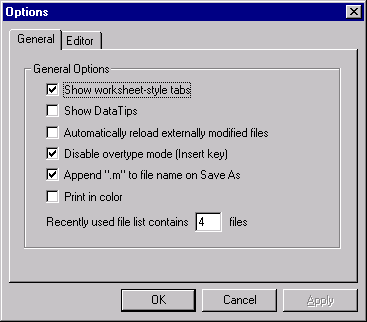

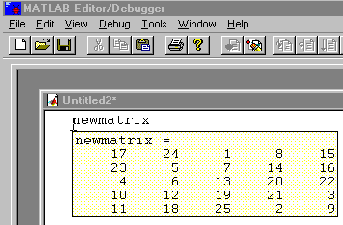
.m extension is appended to the filename provided in the Save As dialog box if that extension is not already present. If this option is not checked, the file is saved with the filename exactly as typed.
Print in color.
Prints the M-file in color when a color printer is used.
Recently used file list.
Controls number of files listed on the recently used file list under the File menu. The Editor must be restarted for the new number to take effect.
Editor Options
Choose Options from the Tools menu and select the Editor tab.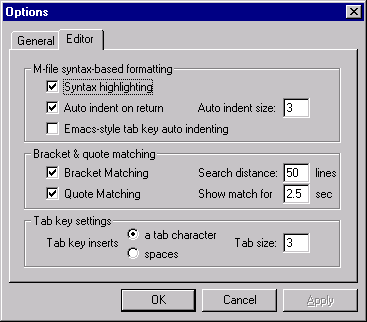
 Saving Editor Options.
The MATLAB Editor stores your options in a registry file. This registry is not portable across different UNIX platforms. When you start the Editor, if you get messages about missing options, it is possible that your registry has somehow been corrupted. See Chapter 2 of the Using MATLAB book for more information.
Saving Editor Options.
The MATLAB Editor stores your options in a registry file. This registry is not portable across different UNIX platforms. When you start the Editor, if you get messages about missing options, it is possible that your registry has somehow been corrupted. See Chapter 2 of the Using MATLAB book for more information.
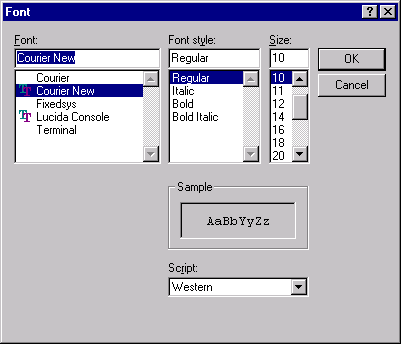
Font
Use the Font submenu to change the font family, style, and size for the text in the Editor/Debugger and the Path Browser.