The Esri Maps Configuration settings page opens.
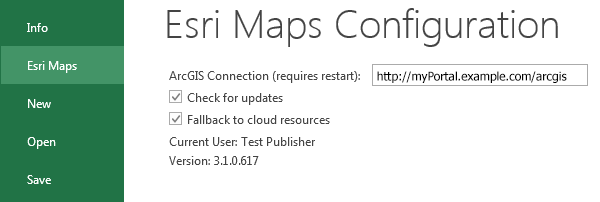
By default, Esri Maps for Office uses ArcGIS Online (http://www.arcgis.com).
http://doc.arcgis.com/en/maps-for-office/help/working-with-portal.htm
Portal for ArcGIS is a repository for location-based data on your organization's network. Portal for ArcGIS is an alternative to cloud-based hosting and provides access to all your organizational data on-site behind your firewall. Esri Maps for Office works with Portal for ArcGIS in much the same way that it does with ArcGIS Online, although some features are not available on the portal.
To start working with Portal for ArcGIS in your organization, you need to do the following:
To use Esri Maps for Office with Portal for ArcGIS in your organization, you need to host the files required by Esri Maps for Office on your network.
Depending on your version of Portal for ArcGIS and the operating system on which it is installed, there are different ways to do this.
If you're using Portal for ArcGIS 10.3 or later on a Windows server, install Portal Resources for Esri Maps for Office directly on your portal. This is a one-time installation performed on the computer or server hosting Portal for ArcGIS. This is the recommended method to use when possible.
Download the version that matches the bit version of your Microsoft Office installation, not the version of your operating system. If you are not sure, open Excel 2010 (or another Office 2010 application), click the File tab, and choose Help. In the About Microsoft Excel section on the right, the Version information states whether the Microsoft Office installation is 32 bit or 64 bit. For Excel 2013 (or other Office 2013 applications), click the File tab, choose Account, and click the About Excel button. The top line of the resulting window indicates whether the Office installation is 32 bit or 64 bit.
If you're using (Portal for ArcGIS 10.3 or later on a Linux server, you must manually host the files on the network.
To manually host the files on your network, do the following:
The ZIP file contains a folder named office.
portal /<Portal_InstallDir>/webapps/docroot/resources/esrimapsforoffice/
For all other portal configurations (Portal for ArcGIS versions 10.2.2 or earlier, or operating systems other than Windows), you must manually host the files on the network.
This option also requires that you edit configuration files on the Esri Maps for Office client machines.
To manually host the files on your network, do the following:
This will be used to host the files needed for use by Esri Maps for Office on your local network.
C:\Program Files(x86)\EsriMaps\Office
ESRI.ArcGIS.Mapping.OfficeIntegration.Excel.dll.config
To connect Portal for ArcGIS with Esri Maps for Office, you need the following information about your portal:
For example, say your Portal for ArcGIS is http://myPortal.example.com and your administrator configured your web adaptor to be arcgis. In this case, the URL to your Portal for ArcGIS would be http://myPortal.example.com/arcgis. By default, the web adaptor for the portal is arcgis, but it can be changed by the administrator for your organization. If you are unsure of what to use as your web adaptor, ask your Portal for ArcGIS administrator.
When you install Esri Maps for Office for the first time, the installation wizard will prompt you to define your connection settings. In the field beside My ArcGIS Portal, provide the URL to your Portal for ArcGIS as described above.
To change the Esri Maps for Office configuration, do the following:
The Esri Maps Configuration settings page opens.
By default, Esri Maps for Office uses ArcGIS Online (http://www.arcgis.com).