Debugging
The Stateflow Debugger supports functions like single stepping, animating, and running up to a designated breakpoint and then stopping.
These steps show how to step through the simulation using the Debugger:
- 1
- Display the Debugger by choosing Debug from the Tools menu of the
graphics editor.
- 2
- Click on the Breakpoints: Chart Entry checkbox to specify you want the
Debugger to stop the simulation execution when the chart is entered.
- 3
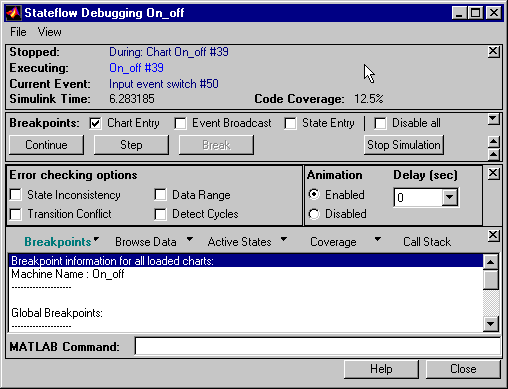
- Click on the Start button to start the simulation. Informational and error
messages related to the S-function code generation for Stateflow blocks are
displayed in the MATLAB command window. When the target is built, the
graphics editor becomes read-only (frozen) and the Debugger window will be
updated and look similar to this.
- 4
- Click on the Step button to proceed one step at a time through the
simulation. Take note of the top portion of the Debugger window where this
information is displayed:
- Watch the graphics editor window as you click on the Step button to see each
transition and state animated when it is executing. After both
Power_off
and Power_on have become active by stepping through the simulation, the
code coverage indicates 100%.
- 5
- Choose Stop from the graphics editor Simulation menu to stop a
simulation. Once the simulation is stopped the graphics editor becomes
writeable (unfrozen).
- 6
- Click on the Close button in the Debugger window.
- 7
- Choose Close from the File menu in the Simulink model window.
For More Information
See Chapter 10, "Debugging" for more information beyond the debugging topics in this section.
[ Previous | Help Desk | Next ]