Searching for an Object to Edit Properties
Example
This Stateflow diagram is used to show how to search for an object and edit its properties.
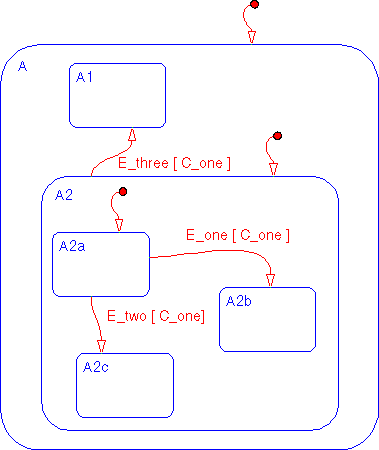
- 1
- Select Find... from the Tools menu of the Stateflow graphics editor window
to invoke the Finder.
- 2
- Click in the Look for: text field and enter
E.
- 3
- Choose Name from the Look In field pull-down menu.
- 4
- Click on and enable the Normal/Wildcard radio box.
- 5
- Ensure that the Events object type is checked. Event and data objects must
already be defined using either the Explorer or the graphics editor Add
menu. A checkmark indicates that the object is included in the search
criteria. By default, all object types are included in the search criteria.
Deselect all other objects.
- 6
- Click on the Search button. These are the results of the search.
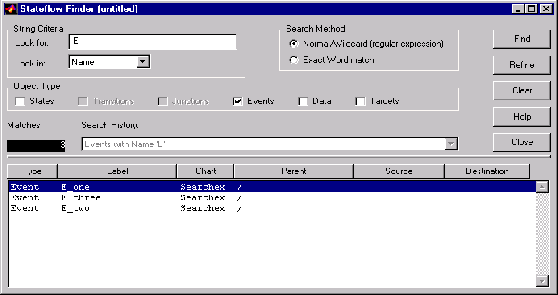
- There are three matches. The Search History shows that the current search
criterion is
Events with name 'E'. The display shows the matches.
- 7
- Double-click on event
E_one to display the Event properties dialog box.
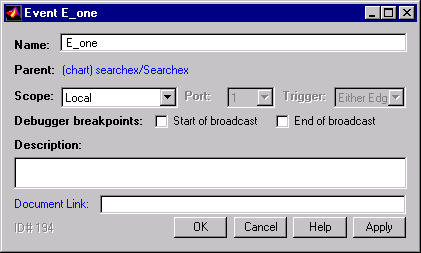
- 8
- Add a description. Click on the Close button to save the changes and close
the Event properties dialog box. An event's parent can be changed only
through the Explorer.
[ Previous | Help Desk | Next ]