Component
System Snapshot
Category
Simulink
Description
The System Snapshot component inserts a snapshot of the current system in your report.
Attributes
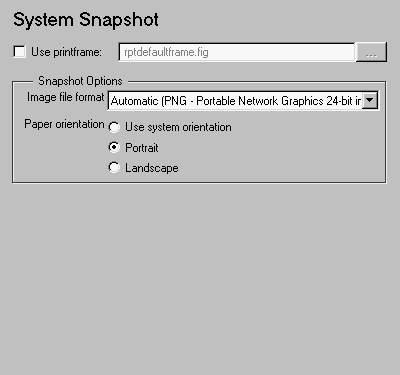
This is the System Snapshot attribute page.
 Note:
Note:
To view a component attribute page in the Setup File Editor, select the component in the setup file outline on the left and click on the Options tab. If the component is not in the setup file outline, you must add it to the outline first. See Chapter 4 for a discussion on how to add a component to the outline.
- Use printframe:
- Choose this option to print a frame around the image. You can use the default Report Generator frame,
rptdefaultframe.fig , or you can use the Frame Editor to build a custom frame.
- To build a custom frame, type
frameedit at the command line to invoke the Print Frame Editor. For help with the Print Frame Editor, select Print Frame Editor Help from the Help menu. See frameedit in the Simulink reference pages for a discussion of the frameedit command.
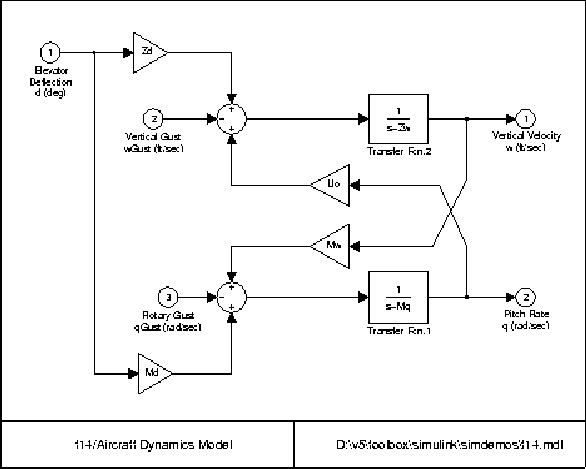
- The default Report Generator frame is five inches wide and four inches high. It includes the name of the system and the model directory. This frame is optimized for use with a portrait paper orientation. The Aircraft Dynamics Model in the f14 Simulink demo model is shown below with the default Report Generator frame option.
- Image file format
- Choose the image file format (e.g., JPEG, TIFF, etc.,) from this drop box. To automatically choose the format best suited for the output format that you chose in the Report component, select Automatic, which is the default option. Otherwise, make sure that you choose an image format that your output viewer can read.
- Paper orientation
- You can choose Landscape or Portrait as your paper orientation, or you can choose the Use system orientation option. The Use system orientation option uses the
PaperOrientation parameter in Simulink, which you can set as Landscape or Portrait.
Insert anything into report?
Yes. Image.
Filename
cslsnapshot
[ Previous | Help Desk | Next ]