| Report Generator | Search Help Desk |
| List |
Category
FormattingDescription
The List component creates a bulleted or numbered list from a cell array or from subcomponents.Attributes
This is the List attribute page.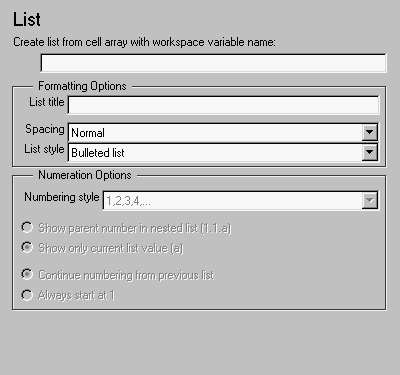 Note:
Note:
Formatting Options
List titleCompact spacing or Normal spacing.Bulleted list or Numbered list. If you choose Numbered list, then you can select numbering options in the Numeration Options section.Numeration Options
Numbered List for the List style. The options are:1,2,3,4,...
a,b,c,d,...
A,B,C,D,...
i,ii,iii,iv,...
I,II,III,IV,...
1. Example2. Example2.1. Example2.2.Example2.2.a.Example2.2.b.Example3. Example
1. Example2. Example1. Example2.Example1.Example2.Example3. Example
Example1: Creating a Nested List
You can create a nested list by putting one cell array inside another or by nesting one List component inside another. For example, if you have the following setup file, with one List component nested inside another List component:[-] Report - Unnamed.rpt
[-] Bulleted list from subcomponents
[ ] Text - sky
[ ] Table - varname
[ ] Image - test.jpg
[ ] Text - grass
[-] Bulleted list from subcomponents
[ ] Text - clouds
[ ] Text - sun
[-] Paragraph - information
Then the report would contain the following bulleted lists:
sky
varname
test.jpg
grass
clouds
sun
information
Example 2: Creating the Same List With Subcomponents and a Cell Array
Setup file with subcomponents: [-] Report - Unnamed.rpt
[-] Bulleted list from subcomponents
[ ] Text - red
[ ] Text - green
[ ] Text - blue
Setup file calling a cell array:
[-] Report - Unnamed.rpt
   [-] Bulleted list from cell array called colors
Cell array:
colors={'red','green','blue'}
red
green
blue
Insert anything into report?
Yes. List.Filename
cfrlist