| Report Generator | Search Help Desk |
Tutorial: Editing and Running the New Component
You have now completed the part of the tutorial that uses the Component Creation Wizard. For the rest of this tutorial, you will be editing M-files that are produced when you create the component. The table below shows the M-files you will be editing.| Edit This M-File |
To Complete This Task |
execute.m |
Incorporate new attributes and insert a snapshot of the figure into the report |
getinfo.m |
|
outlinestring.m |
Change the string that appears in the setup file outline in the Setup File Editor |
execute.m, which runs the component when the report is generated. In general, editing getinfo.m and outlinestring.m is optional.
In general, to edit these M-files, you must have some knowledge of MATLAB. To edit these M-files for the tutorial, you should have some knowledge of Handle Graphics as well.
Editing a New Component
When you create a component, the Report Generator creates an@<compfilename> directory; in this case the created directory is @crprandplot.
The M-files in this directory are methods; they are intended to be used by this object only. The following are M-files in @crp_randplot.Editing the Execute Method
Open theexecute.m file, which runs the component when the report is generated. This method inserts into the report the information that the component creates when the report is generated. The default execute.m file created by the Component Wizard inserts nothing into the report.
The execute.m file for the new component contains the following lines of code:
function out=execute(c)
%EXECUTE returns a report element during generation
out=sgmltag;
In order for your
execute.m method to insert meaningful information into the report, you must modify this M-file.
The single output argument of the execute.m method is inserted into the report. If the output is a string or number, the component acts like a text component and inserts the output directly into the report. It is possible to create a more sophisticated output by running another component within your execute method.
The following tutorial tasks show you how to use both output forms:
execute.m to Insert Text Output into the Report" shows you how to edit execute.m to use the component to insert a string or number into the report
execute.m to Insert a Figure into the Report" shows you how to edit execute.m to run the Graphics Figure Snapshot component within the Figure Random Plot component to insert the snapshot of the figure into the report.
Editing execute.m to Insert Text Output into the Report
Edit theexecute.m file to create a figure, plot random lines in the figure's axes, and insert the handle to the figure (text output) into the report.
To complete this task, replace the default lines of code with the following lines of code (comments are optional):
%EXECUTE returns a report element during generation
function out=execute(c)

%Create the figure.
figHandle=figure('Name',c.att.Plot_Title);

%Create the axes and make them a child of the figure.
%Set the axes "Color" property to be the value of
%the AxesColor attribute.
axHandle=axes('Parent',figHandle);

%This creates the data to be plotted
%and displays it in the axes.  The
%number of lines to be plotted is
%defined by the NumLines property.
plotData=rand(10,floor(c.att.NumLines));
plot(plotData,'Parent',axHandle);

%By setting 'out' to the figHandle variable,
%we will insert the figure handle into the report.
out=figHandle

%Clean up by deleting the figure
delete(figHandle)
Using the New Component
After editing theexecute.m method, you are ready to use your component in a report. Add the component to a setup file and click on the Report button. If there is an error during generation, the Report Generator will skip over the component.
Create a setup file that looks like this:
[-] Report - rplot-test.rpt
   [-] Paragraph - <Text from subcomponents>
      [ ] Text - Random Plotted Figure has handle=
      [ ] Figure Random Plot
Your report will look like this (it will contain the following line):
Random Plotted Figure has handle=1Note that the handle number may be different depending on how many figure windows you had open at the time of generation. You now have a functioning component. The next section discusses how to add new attributes to the component and change the
execute.m method so that it inserts a snapshot of the random plot figure into the report.
Creating a New Attribute
You can create a new attribute by editinggetinfo.m. This methods file contains information on component attributes and how they are displayed in the component attribute page (shown in the Options tab of the Setup File Editor).
All attribute information for a component is taken from out.att.XXX and out.attx.XXX lines in getinfo.m. The out.att.XXX lines are attributes and the out.attx.XXX lines are UI options. The out.attx.XXX lines are optional; they do not need to be included in getinfo.m. If you do not include them, default UI controls are used for the attribute.
Finding Attributes and Their Default Values
Find the following section ingetinfo.m:
This section shows that there are two attributes:%---------------------- ATTRIBUTES --------------------%The out.att.XXX section sets attribute defaults.out.att.Plot_Title = 'My Random Plot';out.att.NumLines = [3];
Plot_Title, which has a default value of 'My Random Plot'
NumLines, which has a default value of 3
Plot_Title and NumLines were specified in the Fieldname field in the Component Attributes page of the Component Creation Wizard. The default values were specified in the Default value field in the Component Attributes page.
Adding a New Attribute and Default Value
Create another attribute calledisVisibleAxes. This attribute determines whether the figure axes are visible. The attribute will have a default value of logical 1 (axes on).
To complete this task, add the following line to this section:
out.att.isVisibleAxes = logical(1);
Specifying Attribute Name, Data Type and UI Control
To specify attribute name, data type, and UI Control, (corresponds to Att. name, Data type, and Control type fields in the Component Attributes page), find the following section ingetinfo.m:
%------------------ ATTRIBUTE DISPLAY -----------------
%The out.attx.XXX section sets attribute GUI information.
%Each .attx structure has the following fields:
% .String - Appears as a text field next to the UIcontrol
% .Type - data type of the corresponding attribute.
%      STRING - character string
%      NUMBER - scalar or vector number
%      LOGICAL - boolean logical(1)/logical(0)
%      ENUM - enumerated list of STRING, NUMBER, or LOGICAL
%      CELL - cell array
%      OTHER - structure or object
%         note: "OTHER" has no automated uicontrol updating
% .enumValues - options for an enumerated list (.Type='ENUM')
% .enumNames - display representation of .enumValues
%         note: must be same length as .enumValues
%         note: empty enumNames implies display from enumValues
% .UIcontrol - type of control to use in GUI
% .numberRange - min and max values (.Type-'NUMBER')

out.attx.Plot_Title.String='Title of created plot';
out.attx.Plot_Title.Type='STRING';
out.attx.Plot_Title.UIcontrol='edit';

out.attx.NumLines.String='Number of lines to appear in plot';
out.attx.NumLines.Type='NUMBER';
out.attx.NumLines.UIcontrol='slider';
out.attx.NumLines.numberRange=[inf inf];
Attribute Name.
out.attx.isVisibleAxes.String is the name of the attribute as it appears in the Setup File Editor (corresponding to the Att. name field of the Component Attributes page in the Component Creation Wizard).
To create the attribute name for isVisibleAxes called 'Make figure axes visible', add the following line to this section:
out.attx.isVisibleAxes.String='Make figure axes visible';Attribute Data Type.
out.attx.isVisibleAxes.Type is the data type of the attribute (corresponds to the Data type field of the Component Attributes page in the Component Creation Wizard).
To specify the data type for isVisibleAxes to be logical, add the following line to this section:
out.attx.isVisibleAxes.Type='LOGICAL';
LOGICAL sets the data type to be a logical or Boolean number.
Note:
out.attx.isVisibleAxes.UIcontrol is the type of UI control for the attribute (corresponding to the Control type option of the Component Attributes page in the Component Creation Wizard).
To specify the UI control for isVisibleAxes to be a check box, add the following line to this section:
out.attx.isVisibleAxes.UIcontrol='checkbox';
Creating Another Attribute
Create another attribute calledAxesColor, which lets the user choose one of four colors for the axes: white, green, red and blue. The default color will be white. The name of the attribute, as is appears in the Setup File Editor, will be Color of Axes.
To do this task, add the following lines of code to getinfo.m (comments are preceded by `%' and are optional):
Note that out.attx.AxesColor.UIcontrol and out.attx.AxesColor.Type are not specified here. A default UI control and data type are used, according to the default value.% This creates an attribute called AxesColor, which has a default% color of white (1 1 1).out.att.AxesColor=[1 1 1]; % This creates a name for the attribute, which appears in the % attribute page in the Options tab.out.attx.AxesColor.String='Color of axes';% This creates an enumerated list with color choices of % white (1 1 1), green (0 1 0), red (1 0 0), and blue (0 0 1). out.attx.AxesColor.enumValues = {[1 1 1] [0 1 0] [1 0 0] [0 0 1]}; % This creates the names for the entries in the enumerated % list: white, green, red and blue.) out.attx.AxesColor.enumNames = {'white' 'green' 'red' 'blue'};
Changing a Previously Created Attribute
You can change a field for any attribute that you create by editing thegetinfo.m.
The slider created for NumLines has a range of -inf to inf:
out.attx.NumLines.numberRange=[-inf inf];A slider by default has a range of:
[-inf +inf]; it guesses about the range. Change the slider range to [1 10] (minimum and maximum number of lines).
Changing the Outline String
Theoutlinestring.m method creates a string that is a one-line description of the component in the setup file outline in the left-hand side of the Setup File Editor.
outlinestring.m contains the following lines of code:
function strout=outlinestring(c)
% OUTLINESTRING display short component description
% STR=OUTLINESTRING(C) Returns a terse description of the
% component in the setup file editor report outline.  The
% default outlinestring method returns the component's name.
info=getinfo(c);
To change the outline string, add the following line of code in
outlinestring.m:
strout=[info.Name ' - ' c.att.Plot_Title];
out.Name in getinfo.m, adds a dash, and the second part from out.att.Plot_Title, which is My Random Plot. The string representing the new component in the setup file outline now has following appearance:
Figure Random Plot - My Random Plot
Running the New Component
To run the new component, you must editexecute.m.
First, save all your changes to getinfo.m and outlinestring.m. You can use the Setup File Editor to view and check the attributes of your new component.
This is the attribute page.
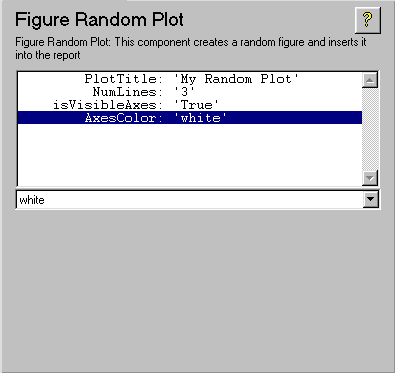
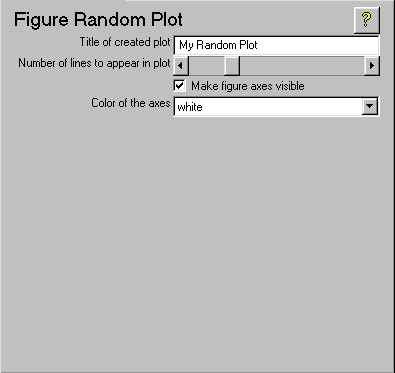 If you did not select the Create custom attributes method option on the Component Methods page, then you get the inherited attribute page, shown below.
Editing execute.m to Insert a Figure into the Report
Open theexecute.m file, which runs the component when the report is generated. Edit the file so that the component uses the new isVisibleAxes and AxesColor attributes that you just created. The new code will also insert a snapshot of the random plot figure into the report instead of returning the figure handle as text.
To complete this task, replace the old lines of code with the new lines of code shown below.
function out=execute(c)
%EXECUTE returns a report element during generation

%Create the figure.
figHandle=figure('Name',c.att.PlotTitle);

%Create the axes and make them a child of the figure
axHandle=axes('Parent',figHandle);

%Turn axes visibility on or off depending
%on the value of the isVisibleAxes attribute
if c.att.isVisibleAxes
   axis on;
else
   axis off;
end

%This creates the data to be plotted
%and displays it in the axes.  The
%number of lines to be plotted is
%defined by the NumLines property.
plotData=rand(10,floor(c.att.NumLines));
plot(plotData,'Parent',axHandle);

%Set the axes "Color" property to be the value of
%the AxesColor attribute.
set(axHandle,'Color',c.att.AxesColor);

%Now what we have created the figure, we want
%to display it in the report.

%Create an HG Figure Snapshot component
snapComp=c.rptcomponent.comps.chgfigsnap;

%Set the title of the resulting snapshot
%to be the Plot_Title attribute.
snapComp.att.ImageTitle=c.att.Plot_Title;

%Since the random plot figure is the current
%figure, it will be the one captured by the
%snapshot component.  This command runs the
%snapshot component and returns the DocBook
%<figure> tag.  The second argument to
%runcomponent shows the priority of the
%"Running Component" message in the Generation
%Status tab.
out=runcomponent(snapComp,6);

%Clean up by deleting the figure
delete(figHandle)
Note the second argument to runcomponent in the line
out=runcomponent(snapComp,6);sets the message priority level to 6. If you set the Generation Status message priority level in the Setup File Editor to be less than 6, then no messages will be generated for this component as it is executing. See "Setting the Generation Status Update Priority Level" in Chapter 2 for a discussion on the message priority level.
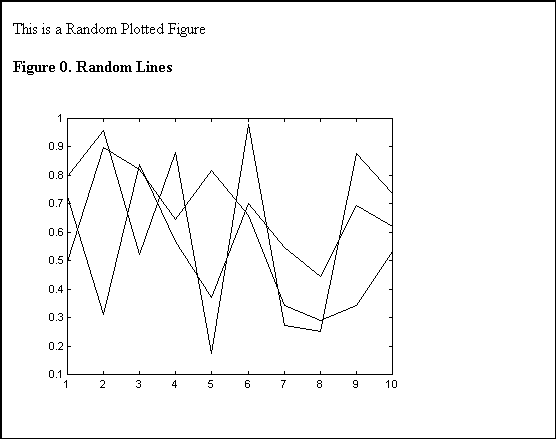
The Report Created by the Figure Random Plot Component
To create a simple report with the Figure Random Plot Component, create a setup file that looks like this. This setup file uses the modified component to create a report. This report will include a paragraph of description text and a picture of a randomly plotted figure. To do this task, create the following setup file:[-] Report - new-rp-test.rpt [-] Paragraph - This is a Random Plotted Figure [ ] Figure Random Plot - Random LinesClick on the Report button. The following report is generated.