| Report Generator | Search Help Desk |
Creating and Generating a Report
Setup File
The contents of a report are specified in its setup file. You can use the standard setup files provided with the Report Generator to generate a default report or you can create a customized report by using the Setup File Editor. The Setup File Editor is the primary graphical user interface (GUI) for the Report Generator.Using a Standard Setup File
You can generate a report with any of the setup files that are on your path. To list all of the setup files on your path, typerptlist in the MATLAB command window. The Setup File List will appear.
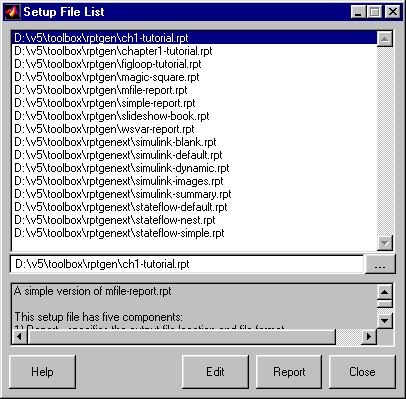 Select
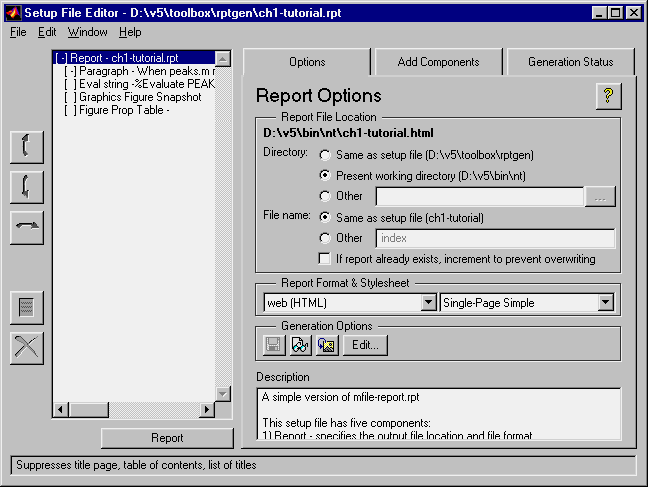
 ch1-tutorial and click on Edit to invoke the Setup File Editor.
Generating and Viewing the Report
To generate a report from the Setup File Editor, click on the Report button, located at the bottom of the setup file outline on the left side of the Setup File Editor. This report is generated in HTML. While the report is generating, the following events occur:
Report Contents
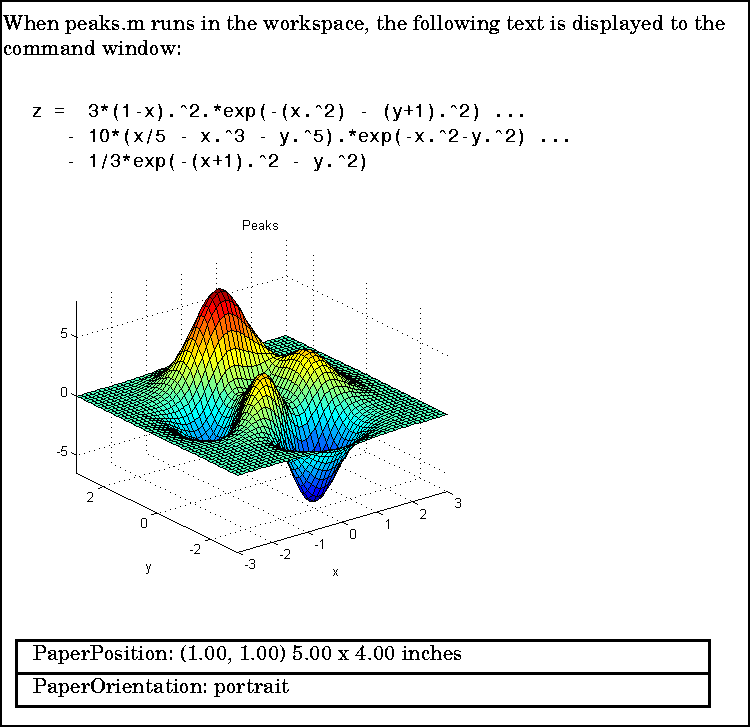
The report is shown below, on this page.Comparing Components in the Setup File to the Report
The components in the setup file outline determine the information contained in the report. The following sections show the information each component in the outline inserts into the report.Report Component
The first component in the setup file outline is always the Report component. The Report component specifies output options, including output file format. The default output format is HTML. The Report component does not insert any visible output into the report.Paragraph Component
The next component in the setup file outline is a Paragraph component. The Paragraph component inserts the following paragraph in the report:When peaks.m runs in the workspace, the following text is displayed to the command window:
Evaluate MATLAB Expression Component
The third component in the setup file outline is an Evaluate MATLAB Expression component. This is represented in the outline byEval String-%Evaluate PEAKS in the base workspace.
%Evaluate PEAKS in the base workspace.

%This clears other open figures.
close all

%This creates the figure.
peaks

%This sets the figure print size to 5x4 inches
set(gcf,...
   'PaperPosition',[1 1 5 4],...
   'PaperUnits','inches');
and inserts the command-line output in the report:
z =  3*(1-x).^2.*exp(-(x.^2) - (y+1).^2) ...
   - 10*(x/5 - x.^3 - y.^5).*exp(-x.^2-y.^2) ...
   - 1/3*exp(-(x+1).^2 - y.^2)
Graphics Figure Snapshot Component
The fourth component in the setup file outline is the Graphics Figure Snapshot component. The Graphics Figure Snapshot component inserts a snapshot of the current figure into the report. Since the Evaluate MATLAB Expression component created thePeaks image, it is the current image and is inserted into the report.
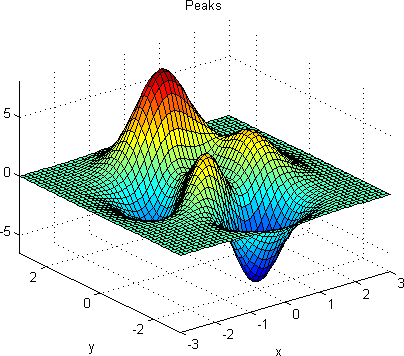
Figure Property Table Component
The last component in the setup file outline is the Figure Property Table component. The Figure Property Table component inserts a table of selected Handle Graphics® figure property name/property value pairs for the Peaks image.|
PaperPosition: (1.00, 1.00) 5.00 x 4.00 inches
|
|
PaperOrientation: portrait
|