


 parameter. Increasing Beta widens the mainlobe and decreases the amplitude of the window sidelobes in the window's frequency magnitude response.
| DSP Blockset | Search Help Desk |
| Window Function | See Also |
Compute a specified window, and apply it to an input signal.
Library
Signal Operations, in General DSP; DSP SourcesDescription
The Window Function block has three modes of operation, which are selected by the Operation parameter. In each mode of operation, the block computes samples of the window specified by the Window type parameter. The length of the sampled window, Nw, is determined by the size of the input, or specified by the Window length parameter if there is no input.w = hamming(Nw) % symmetric (aperiodic) windowIf Sampling is set to Periodic, the same window is computed as
w = hamming(Nw+1)    % periodic (asymmetric) window
w = w(1:Nw)
The periodic window option only applies to the generalized-cosine windows (Blackman, Hamming, and Hanning). The available window types are shown below. The Beta and Stopband ripple parameters specify the characteristics of the Chebyshev and Kaiser windows, and are only available when the respective window designs are selected.
Frame-Based Operation
In the cases when the window is being applied to an input (Generate and apply window or Apply window to input selected from the Operation menu), the block assumes that the input is an M-by-N frame matrix. Each of the N frames in the matrix contains M sequential time samples from an independent signal. The Number of channels parameter specifies the number of independent channels (columns, N) in the matrix. The block computes a window to match the input frame size (Nw=M), and applies the window to each channel independently. The output is the same size as the input. Frame-based operation provides substantial increases in throughput rates, at the expense of greater model latency.Dialog Box
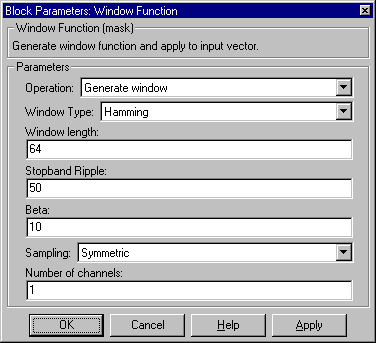
The parameters displayed in the dialog box vary for different operation/window type combinations. Not all of the parameters listed below are active in the dialog box at any one time.
parameter. Increasing Beta widens the mainlobe and decreases the amplitude of the window sidelobes in the window's frequency magnitude response. See Also
FFTbartlett (Signal Processing Toolbox)
blackman (Signal Processing Toolbox)
boxcar (Signal Processing Toolbox)
chebwin (Signal Processing Toolbox)
hamming (Signal Processing Toolbox)
hanning (Signal Processing Toolbox)
kaiser (Signal Processing Toolbox)
triang (Signal Processing Toolbox)