Testing with a CD Player
Testing your sound card with a CD player follows these steps
- 1
- Check that your CD is physically connected to your sound card.
- 2
- Put an audio CD into your CD player. The Microsoft CD Player should
automatically be invoked and begin playing the CD. If this doesn't occur,
then you must invoke this program yourself:
Start>Programs>Accessories>Multimedia>CD Player
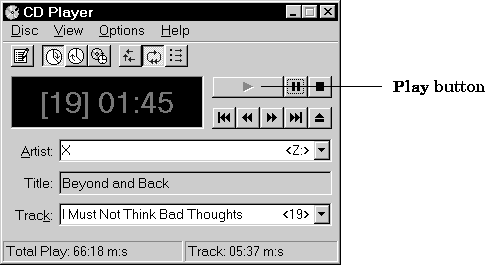
- The figure below shows how to play a CD with the CD Player program.
- 3
- While the CD is playing, record audio data by selecting the Sound Recorder's
Record button. While recording, the green line in the Sound Recorder
should not be flat-lining. If everything has worked, then the A/D subsystem
on your sound card is working properly. Note that the CD player performs a
D/A conversion on the audio data. Therefore, the CD sends analog data to
the sound card.
- 4
- After recording the audio data, save it to disk. The data is automatically
saved as a WAV file.
- 5
- Play the saved WAV file. While playing back, the green line in the Sound
Recorder should not be flat-lining. If everything has worked, then the D/A
subsystem on your sound card is working properly.
[ Previous | Help Desk | Next ]