Specifying Line Styles
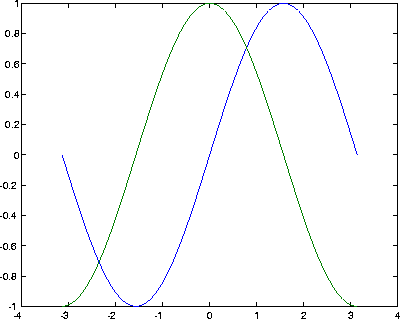
When displaying on a color screen or printing to a color printer, MATLAB usually distinguishes different lines in a figure by their colors. For example, these commands plot the sine and cosine functions; MATLAB sets the colors of the lines according to the value of the ColorOrder property:
x = -pi:pi/30:pi;
plot(x,sin(x),x,cos(x))
In addition to color, you can distinguish lines by line style or marker symbol. If you want to print the figure on a black and white printer, keep in mind that all lines will print as black (or white, if the background is black and InvertHardCopy is off). If you want MATLAB to dither the lines to attempt to render them as different shades of gray, you can use a color driver; however, lines are generally too thin to be dithered effectively. A better approach is to vary the line style or marker symbol. Many of the plotting functions provide a mechanism for setting the line style and marker symbol for each line being plotted.
You can also control the line styles by setting the axes LineStyleOrder and ColorOrder properties. To distinguish lines, MATLAB cycles first through the ColorOrder values and then the LineStyleOrder values. The factory default for ColorOrder is a set of six colors, while the factory default for LineStyleOrder is a single style (a solid line). This means that MATLAB will use different colors but the same line style for all lines, unless you specify otherwise.
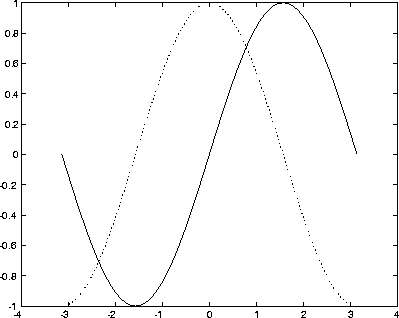
If you print to a black and white printer, you may want to change ColorOrder to a single color, and LineStyleOrder to multiple styles. This will cause MATLAB to use the same color for each line, but different styles. These values must be set before the axes object is created. For example, this code creates a new figure, sets the appropriate axes properties, and then creates the plot:
x = -pi:pi/30:pi;
figure('DefaultAxesColorOrder',[0 0 0], ...
'DefaultAxesLineStyleOrder','-|:|--|-.')
plot(x,sin(x),x,cos(x))
[ Previous | Help Desk | Next ]